Showing posts with label blogger. Show all posts
Showing posts with label blogger. Show all posts
Thursday, November 3, 2016
10 Best Blogger Tips and Tricks
10 Best Blogger Tips and Tricks
A list of blogger tips and tricks for every webmaster that uses the blogger platform is given below. These tips and hacks can be implemented on all blogger blogs, enabling improvement of ones blog design and search engine optimization. For newbies and veterans, you can try out the following blogger tips and tricks .
Usually, blogger allows only xml templates, this blogger tip will enable you to use HTML templates on your blogger blog. To do this,
Setting up custom robots header tags is an on page search engine optimization strategy that can influence your sites traffic and its ranking in search engines. You get to specify the parts of your blogger blog which web crawlers can crawl and index. To do this, check out this post on how to add custom robots header tags in blogger blogs.

Help your blog readers navigate easily through your blog, and view all its content in one place by including an HTML sitemap page. This sitemap page categorizes all the post on your blog depending on their labels. There is interlinking of one post to the other, which is an effective on page search engine optimization technique. Check out this post on how to create an HTML sitemap page in blogger blogs.
Meta descriptions can increase a blogs visibility in search engines, click through rate and make it rank higher in search engine result pages. For each blogger post, you can add a short keyword rich description of 155 characters that summarizes the content of your post. To know more about search description and how to add them in each blogger post/page, check out this post on how to add search description in blogger posts.
Here, you can decide to turn off comments on specific posts on your blog. Your sites visitor on viewing these posts will not see the comment form. This can help reduce spam on your blog. To turn off comments for certain posts on your blog, follow the steps below.
To hide comments on new blogger posts,

This blogger tip/trick will enable you to disallow people from copying your blogs content. Any right click on mouse or selecting on posts will not be functional. Search engines like Google penalizes for duplicate content. You wouldnt want to get penalized because someone else decided to steal your content or their blog ranking higher in search engines than yours with your own content . So, see this post on how to disable right click on blogger.
To hide specific posts from blogger homepage/static/archive pages, then this blogger trick will help you out. Irrelevant post can hidden from your blogs homepage even though theyve not been deleted. To do this, visit this post on how to hide certain posts from blogger homepage.
The commentluv plugin on a website increases the number of comments on posts on the website. Since those who comment are rewarded with a backlink to their blog, this encourages your blog readers to drop meaningful comments. More comments on your blog means it is popular and has authorithy. Heres how to add commentluv plugin in blogger blogs.
With the blogger tips and tricks listed above, not only can you blog better, you can also make your blog look better.
Use HTML Templates In Blogger Blogs
Usually, blogger allows only xml templates, this blogger tip will enable you to use HTML templates on your blogger blog. To do this,
- From your blogger dashboard,
- Goto Template.
- Scroll down to the bottom of the page, then select Revert to classic templates.
- Select revert to classic template
- Copy and paste your HTML codes for the template in the space provided.
- Finally, save.
How to Add Custom Robots Header Tags in Blogger
Setting up custom robots header tags is an on page search engine optimization strategy that can influence your sites traffic and its ranking in search engines. You get to specify the parts of your blogger blog which web crawlers can crawl and index. To do this, check out this post on how to add custom robots header tags in blogger blogs.
How to Lock/Unlock Blogger widgets
By default, some blogger widgets cannot be removed in the layout section.This includes the navigation bar and the attribution widget. To lock or unlock blogger widgets and make them removable or undeletable, follow the steps below.

To unlock,
- From your blogger dashboard,
- Navigate to layout
- Click Edit on the blogger widget which you want to lock/unlock.
- In the address bar, copy the widgets ID as shown in the image below.
- Next, goto your blogger template.
- Click on Edit HTML
- Using CTRL + F keys, search for the widget ID which you copied or click on Jump to Widget, then select the widget.
To unlock,
- replace the field lock=true with lock=false
- replace lock=false with lock=true
How to Show Ads and Gadgets In Blogger Mobile Version
Some blogger widgets and gadgets like the recent posts widget, popular post widget, related post widget, social share and follow buttons etc can be included in the mobile version of blogger blogs. These widgets make your blog mobile friendly and also enable interlinking of post, which can help increase your blogs pageviews especially if most of your visitors are mobile users. This can also be done to the ads, where you can take advantage of the oppurtunity to make extra cash with ads displayed on the mobile version of your blog. Although some customized blogger templates have this feature ready made, if yours doesnt or if youre using one of the default blogger templates, you can check out this post on how to show ads and gadget on mobile version of blogger.
How to Create HTML Sitemap Page in Blogger
Help your blog readers navigate easily through your blog, and view all its content in one place by including an HTML sitemap page. This sitemap page categorizes all the post on your blog depending on their labels. There is interlinking of one post to the other, which is an effective on page search engine optimization technique. Check out this post on how to create an HTML sitemap page in blogger blogs.
Enable Meta Search Description For Each Blogger Post
Meta descriptions can increase a blogs visibility in search engines, click through rate and make it rank higher in search engine result pages. For each blogger post, you can add a short keyword rich description of 155 characters that summarizes the content of your post. To know more about search description and how to add them in each blogger post/page, check out this post on how to add search description in blogger posts.
How to Centralise Blogger Title and Description
Give your blog a different look by centralizing the title and description. By default, the blog title and its description on blogger are aligned to the left, not unless youre using a customized template which has already implemented this. Following this link on how to centralize blogger title and description, the simple tutorial in the post will show you how to go about it.
Turn Off Comments for Individual Blogger Post
Here, you can decide to turn off comments on specific posts on your blog. Your sites visitor on viewing these posts will not see the comment form. This can help reduce spam on your blog. To turn off comments for certain posts on your blog, follow the steps below.
To hide comments on new blogger posts,
- Click on the new post icon to create a post
- Goto Posts,
- Select Edit on the post that youll like to hide comments or the comment form.
- In the right tab post settings , click on Options
- Under the reader comments, Select either Dont allow, show existing or Dont allow, hide existing
How to Add Read More Attribution Links to Copied Text in Blogger
Including read more attribution links or credit links in posts on your blog can help create backlinks and drive traffic to your blog. Each time someone copies part or all of your blogs content into theirs, the URL of the post that was copied is automatically entered into their post. Linking back to your blog as the source of the content with the use of a read more attribution code snippet for blogger blogs makes getting backlinks and traffic to your blog easier. To do this and get some reward for the effort youve put into writing your blog posts, see this post on how to add read more attribution links to copied text in blogger .
How to Disable Right Click On Blogger - Stop Copy Paste
This blogger tip/trick will enable you to disallow people from copying your blogs content. Any right click on mouse or selecting on posts will not be functional. Search engines like Google penalizes for duplicate content. You wouldnt want to get penalized because someone else decided to steal your content or their blog ranking higher in search engines than yours with your own content . So, see this post on how to disable right click on blogger.
Automatically Open all External Links in a New Window On Blogger
Ensuring external links on your blog are opened in a new tab/window on web browsers can help retain your blogs visitors for a longer period and also reduce your blogs bounce rate. Imagine if your readers left your blog without returning to it because the link with which used in referring them to an external website did not open in a new window. For blogs that have hundreds or thousands of posts that include external links, it might be difficult or impossible to go through all of them in order to choose the option "open in new tab" provided when including links in blogger posts. Heres a post that will save your time and show you how to automatically open all external links in a new window in blogger blogs.
How to Nofollow All External Links Automatically in Blogger
If you are worried about who you link to, using the nofollow attribute insulates you against loss of reputation. Check out this post on how to automatically add nofollow attribute to all external links on your blog.
How to Hide Specific Blogger Posts From Homepage
To hide specific posts from blogger homepage/static/archive pages, then this blogger trick will help you out. Irrelevant post can hidden from your blogs homepage even though theyve not been deleted. To do this, visit this post on how to hide certain posts from blogger homepage.
How to Add CommentLuv Plugin On Blogger Blogs
The commentluv plugin on a website increases the number of comments on posts on the website. Since those who comment are rewarded with a backlink to their blog, this encourages your blog readers to drop meaningful comments. More comments on your blog means it is popular and has authorithy. Heres how to add commentluv plugin in blogger blogs.
With the blogger tips and tricks listed above, not only can you blog better, you can also make your blog look better.
Go to link download

Resolve CommentLuv Could Not Find A Feed of the Blog In Blogger
Resolve CommentLuv Could Not Find A Feed of the Blog In Blogger
For blogger blogs encountering the error message "RSS Error: A feed could not be found at (put your RSS feed URL here). A feed with an invalid mime type may fall victim to this error, or SimplePie was unable to auto-discover it.. Use force_feed() if you are certain this URL is a real feed" while commenting of commentluv enabled blogs, in this post youll get to know how to rectify this problem. After inserting your URL in the required field and ticking the commentluv option, if theres no RSS feed URL in your template, youll encounter this error. If you changed your template recently, this might be the case. Commenting on commentluv enabled blogs is one of the ways of building backlinks to a site and also drive traffic it, hence an error like the one above can make that impossible.
Also Read: How to Add CommentLuv Plugin On Blogger Blogs
Top Commentators Widget Enabled Blogs
10+ Best Blogger Tips and Tricks
<link rel="alternate" type="application/rss+xml" title="Posts Feed" href="http://mysite.blogspot.com/feeds/posts/default" />
In the code above, replace mysite.blogspot.com with your URL and optionally Posts Feed with your anchor text/keyword.
High PR Dofollow Commentluv Enabled Blogs
Following the steps above to rectify RSS feed not working properly with commentluv, on retrying to post a comment on one of these commentluv enabled blogs, your blog should be successfully crawled with the most current posts displayed.
Also Read: How to Add CommentLuv Plugin On Blogger Blogs
Top Commentators Widget Enabled Blogs
10+ Best Blogger Tips and Tricks
How to Resolve CommentLuv RSS Error
- From your blogger dashboard,
- Goto Template
- Click on Edit HTML
- In your template, use CTRL+F keys to search for the tag < head>
- Copy the line of code below and paste below <head>
<link rel="alternate" type="application/rss+xml" title="Posts Feed" href="http://mysite.blogspot.com/feeds/posts/default" />
In the code above, replace mysite.blogspot.com with your URL and optionally Posts Feed with your anchor text/keyword.
- Save your template.
High PR Dofollow Commentluv Enabled Blogs
Following the steps above to rectify RSS feed not working properly with commentluv, on retrying to post a comment on one of these commentluv enabled blogs, your blog should be successfully crawled with the most current posts displayed.
Go to link download
Monday, October 31, 2016
How to Add Related Post Widget in Blogger Mobile Version
How to Add Related Post Widget in Blogger Mobile Version
A post on how to add related post widget in blogger mobile version. The related post widget in the mobile version of your blogger blog can increase your blogs pageviews especially if a higher number of visitor/readers access your blog from their phone. Since this blogger widget displays related posts without the images, it does not affect page load time of your blog. It can also reduce your blogs bounce rate beacause there is interlinking of one post to other and your visitors dont leave immediately without checking out any other post on your blog. If your blog posts have been categorized using labels, then you can follow the guidelines below on how to add related post widget without thumbnails in blogger mobile version.
Also Read: How to Add IP Widget In Blogger Blogs
Numbered Page Navigation Widget For Blogger Blogs
Most Commented Posts Widget For Blogger With Thumbnails
Step 1
Step 2
Step 3
Update:06/09/2015 Save your template without including this last step step 4.
Step 4
<b:if cond=data:top.showMobileShare>
Add Stylish Custom Search Box To Blogger
Following the steps above, the related post widget without thumbnails should show up in the mobile and desktop version of your blog. If it doesnt, its probably because youve not added labels in your blog posts.
Also Read: How to Add IP Widget In Blogger Blogs
Numbered Page Navigation Widget For Blogger Blogs
Most Commented Posts Widget For Blogger With Thumbnails
How to Add Related Post Widget Without Thumnails In Blogger
Step 1
- From your blogger dashboard,
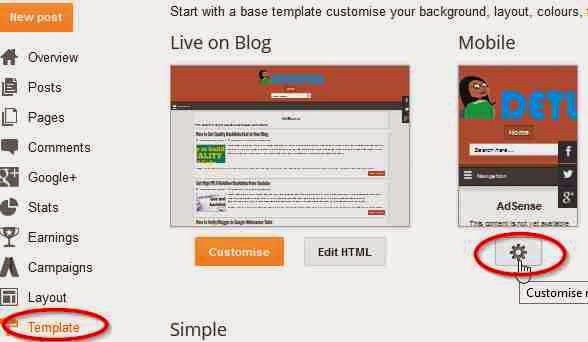
- Goto Template.
- Click on the gear mobile settings icon
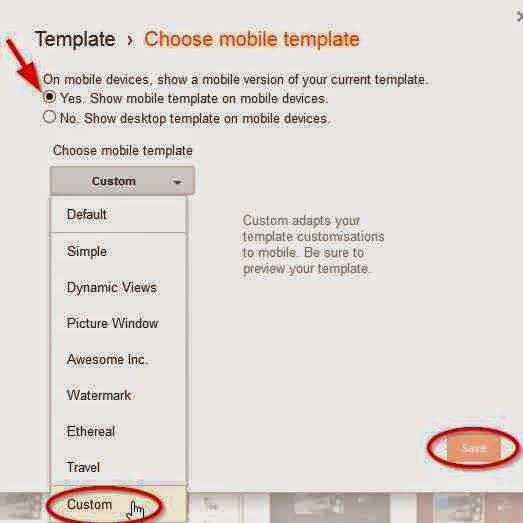
- Select the button option, Yes show mobile template on mobile devices
- From the drop down menu, choose the option custom
- Click on Save to enable your changes.
Step 2
- Next, Still in your template
- Click on Edit HTML
- Using Ctrl+F keys, search for the tag </head>
- Copy the code below and paste above </head>
<!--Related Posts Scripts and Styles Start-->
<style>
#related-posts {
float : left;
width : 350px;
margin-top:20px;
margin-left : 5px;
margin-bottom:20px;
font : 11px Verdana;
margin-bottom:10px;
}
#related-posts .widget {
list-style-type : none;
margin : 5px 0 5px 0;
padding : 0;
}
#related-posts .widget h2, #related-posts h2 {
font-size : 20px;
font-weight : normal;
margin : 5px 7px 0;
padding : 0 0 5px;
}
#related-posts a {
text-decoration : none;
}
#related-posts a:hover {
text-decoration : none;
}
#related-posts ul {
border : medium none;
margin : 10px;
padding : 0;
}
#related-posts ul li {
display : block;
background : url("https://blogger.googleusercontent.com/img/b/R29vZ2xl/AVvXsEg_rJsGTn3oSMisqJfpwoKyKwMUQJuFyBKNrNiHB69R38HrlwyR_ZAgwbRSF4yq_YSyII4Rp25f0ny3x1EPF5eS4x2iLWHcScqOoUN1A-hoHyFKehHnA0OkznIrlHexIOKtjTPiZBMS8T0/s200/greentickbullet.png") no-repeat 0 0;
margin : 0;
padding-top : 0;
padding-right : 0;
padding-bottom : 1px;
padding-left : 21px;
margin-bottom : 5px;
line-height : 2em;
border-bottom:1px dotted #cccccc;
}
</style>
<script type=text/javascript>
//<![CDATA[
var relatedTitles = new Array();
var relatedTitlesNum = 0;
var relatedUrls = new Array();
function related_results_labels(json) {
for (var i = 0; i < json.feed.entry.length; i++) {
var entry = json.feed.entry[i];
relatedTitles[relatedTitlesNum] = entry.title.$t;
for (var k = 0; k < entry.link.length; k++) {
if (entry.link[k].rel == alternate) {
relatedUrls[relatedTitlesNum] = entry.link[k].href;
relatedTitlesNum++;
break;
}
}
}
}
function removeRelatedDuplicates() {
var tmp = new Array(0);
var tmp2 = new Array(0);
for(var i = 0; i < relatedUrls.length; i++) {
if(!contains(tmp, relatedUrls[i])) {
tmp.length += 1;
tmp[tmp.length - 1] = relatedUrls[i];
tmp2.length += 1;
tmp2[tmp2.length - 1] = relatedTitles[i];
}
}
relatedTitles = tmp2;
relatedUrls = tmp;
}
function contains(a, e) {
for(var j = 0; j < a.length; j++) if (a[j]==e) return true;
return false;
}
function printRelatedLabels() {
var r = Math.floor((relatedTitles.length - 1) * Math.random());
var i = 0;
document.write(<ul>);
while (i < relatedTitles.length && i < 20) {
document.write(<li><a href=" + relatedUrls[r] + "> + relatedTitles[r] + </a></li>);
if (r < relatedTitles.length - 1) {
r++;
} else {
r = 0;
}
i++;
}
document.write(</ul>);
document.write(<a href="http://www.techlass.com/2015/04/add-related-post-widget-in-blogger-mobile-version.html " target="_blank" rel="dofollow"><font size="1" color="black">[Get Related Posts Widget]</font></a>);
}
//]]>
</script>
<!--Related Posts Scripts and Styles End-->
Step 3
- In your template, Search for
<div class=post-footer-line post-footer-line-1>
OR SEARCH FOR
<p class=post-footer-line post-footer-line-1>
- Copy the code below and paste below any of the lines of code above which you could find in your template.
<!-- Related Posts with Thumbnails Code Start-->
<b:if cond=data:blog.pageType == "item">
<div id=related-posts>
<font face=Arial size=3><b>Related Posts: </b></font><font color=#FFFFFF><b:loop values=data:post.labels var=label><data:label.name/><b:if cond=data:label.isLast != "true">,</b:if><b:if cond=data:blog.pageType == "item">
<script expr:src="/feeds/posts/default/-/" + data:label.name + "?alt=json-in-script&callback=related_results_labels&max-results=5" type=text/javascript/></b:if></b:loop> </font>
<script type=text/javascript> removeRelatedDuplicates(); printRelatedLabels();
</script>
</div>
</b:if>
<!-- Related Posts with Thumbnails Code End-->
Update:06/09/2015 Save your template without including this last step step 4.
Step 4
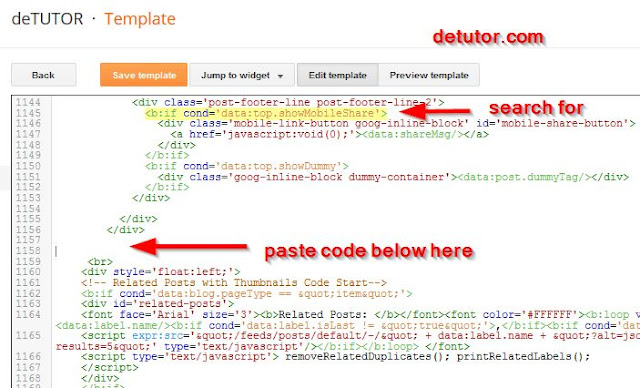
- Still in your template, use CTRL+ F keys to search for this line of code below
<b:if cond=data:top.showMobileShare>
- Below the line of code above, scroll down and search for the fourth </div>
- Copy the code below and paste below the fourth </div> as shown in the image below
<br>
<div style=float:left;>
<!-- Related Posts with Thumbnails Code Start-->
<b:if cond=data:blog.pageType == "item">
<div id=related-posts>
<font face=Arial size=3><b>Related Posts: </b></font><font color=#FFFFFF><b:loop values=data:post.labels var=label><data:label.name/><b:if cond=data:label.isLast != "true">,</b:if><b:if cond=data:blog.pageType == "item">
<script expr:src="/feeds/posts/default/-/" + data:label.name + "?alt=json-in-script&callback=related_results_labels&max-results=5" type=text/javascript/></b:if></b:loop> </font>
<script type=text/javascript> removeRelatedDuplicates(); printRelatedLabels();
</script>
</div>
</b:if>
<!-- Related Posts with Thumbnails Code End-->
</div></br>
- Save your template.
Add Stylish Custom Search Box To Blogger
Following the steps above, the related post widget without thumbnails should show up in the mobile and desktop version of your blog. If it doesnt, its probably because youve not added labels in your blog posts.
Go to link download
Saturday, October 29, 2016
How To Embed PDF DOC XLS And PPT Files In Blogger
How To Embed PDF DOC XLS And PPT Files In Blogger
Steps on how to embed PDF, DOC, XLS, PPT documents/files in blogger blogs are outlined in this post. With the use of Google drive, files/documents like PDFs, HTML, Microsoft Word, Spreadsheets, PowerPoint Slides, Excel Spreadsheets etc can be added easily in blogger posts and can be made accessible to the public. Heres how to Embed PDFs files/documents in blogger posts.
Also Read: 10+ Best Blogger Tips and Tricks
Optimize H1,H2 and H3 Heading Tags In Blogger
Auto Read More With Thumbnail For Blogger Blogs
<iframe src="https://docs.google.com/document/d/19mgrO77F_nvSmPk14ZVujb0EL_NbDLkBD7M/pub?embedded=true"></iframe>
To increase or reduce the size of the document by specify the width and height, as in
<iframe src="https://docs.google.com/document/d/19mgrO77F_nvSmPk14ZVujb0EL_NbDLkBD7M/pub?embedded=true" width="600 " height="550 "></iframe>
How to Hide Specific Posts from Blogger Homepage
Also Read: 10+ Best Blogger Tips and Tricks
Optimize H1,H2 and H3 Heading Tags In Blogger
Auto Read More With Thumbnail For Blogger Blogs
- Visit Google Drive
- Click on New
- Click on File Upload
- Select the file, then click on Open.
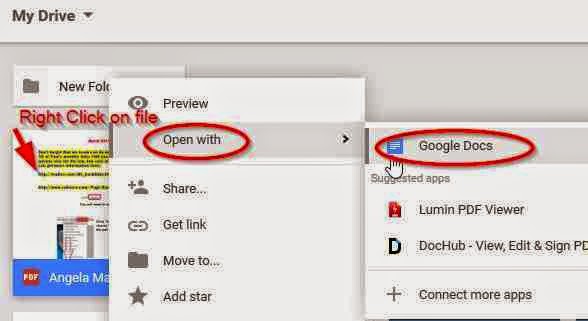
- Right click on the file/document
- Select Open with
- Click on Google Docs
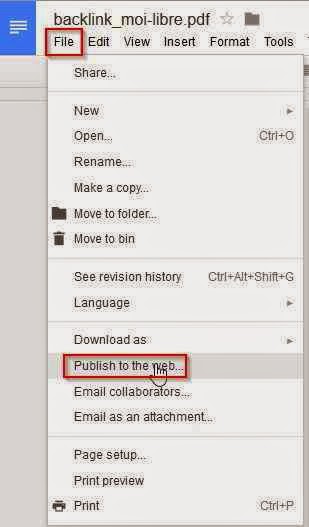
- On Google Docs page, Click on the File menu
- Select Publish to the web.
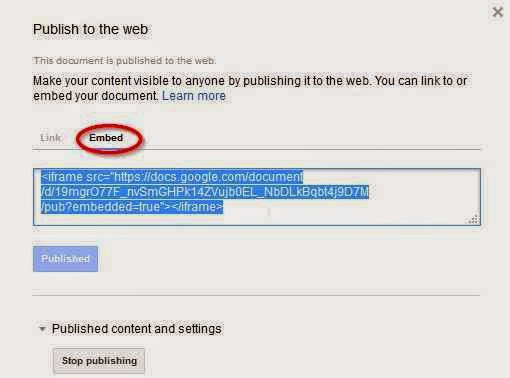
- Click on Embed
- Select Publish
- Copy the code provided.
- Goto your Blogger blog
- Create a new post or open an existing post.
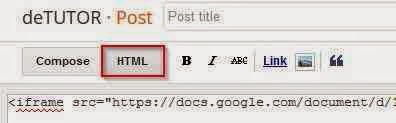
- Select the HTML mode.
- Paste the code where you want it to be displayed in the post.
<iframe src="https://docs.google.com/document/d/19mgrO77F_nvSmPk14ZVujb0EL_NbDLkBD7M/pub?embedded=true"></iframe>
To increase or reduce the size of the document by specify the width and height, as in
<iframe src="https://docs.google.com/document/d/19mgrO77F_nvSmPk14ZVujb0EL_NbDLkBD7M/pub?embedded=true" width="600 " height="550 "></iframe>
- Preview or publish your post.
How to Hide Specific Posts from Blogger Homepage
Go to link download
Wednesday, October 26, 2016
How to Make Blogger Widgets Gadgets Sticky Float
How to Make Blogger Widgets Gadgets Sticky Float
A post on how to make blogger widgets/gadgets sticky(float). You can make any widget or gadget on your blogger blog sticky, which means it stays in a fixed position and floats at the top of the window as you scroll down. Any widget that is made sticky is visible to your visitors as the scroll up and down and it gets more attention and brings about a higher click through rate. All widgets and gadgets that have an ID on your blog can be made sticky, but this is best suited for blogger widgets like social media follow and subscription buttons, social sharing buttons, the recent post widget etc. Heres how to create a floating “sticky” Sidebar widget in Blogger.
Also Read: How to Add HTML Parse Tool in Blogger
How To Centralise Blogger Title And Description
How to Add Read More Attribution Links to Copied Text in Blogger

How to Create HTML Sitemap In Blogger
View your blog to note the changes. If it didnt work, then youre probably using the wrong widget ID. And try not to do this to the Ads on your blog, it did cross my mind.
Also Read: How to Add HTML Parse Tool in Blogger
How To Centralise Blogger Title And Description
How to Add Read More Attribution Links to Copied Text in Blogger
How to Find The Gadget/Widget ID of Any Blogger Gadget
First, youll need to get the widget ID. To do this:
- From your Blogger Dashboard,
- Goto Layout.
- In the layout section, Click Edit on the widget or gadget which you want to make sticky.
- Get the Widgets ID by checking the address bar.
How to Create a "Sticky" Floating Sidebar Widget in Blogger
On getting the widget ID,
- Goto your Blogger Template
- Click on Edit HTML
- Search for the tag </body>
- Copy this code and paste above </body>
<script>
// Tutorial at http://www.detutor.com/2015/03/how-make-blogger-widgetsgadgets-Sticky-float.html
// Free to use or share, but please keep this notice intact.
//<![CDATA[
bs_makeSticky("HTML9"); // enter your widget ID here
function bs_makeSticky(elem) {
 var bs_sticky = document.getElementById(elem);
 var scrollee = document.createElement("div");
 bs_sticky.parentNode.insertBefore(scrollee, bs_sticky);
 var width = bs_sticky.offsetWidth;
 var iniClass = bs_sticky.className +  bs_sticky;
 window.addEventListener(scroll, bs_sticking, false);
 function bs_sticking() {
 var rect = scrollee.getBoundingClientRect();
 if (rect.top < 0) {
 bs_sticky.className = iniClass +  bs_sticking;
 bs_sticky.style.width = width + "px";
 } else {
 bs_sticky.className = iniClass;
 }
 }
}
//]]>
</script>

<style>
.bs_sticking {background:#f2f2f2 !important; position:fixed !important; top:0; z-index:9999; box-shadow:0px 10px 4px -5px rgba(0,0,0,0.3); margin-top: 0; position:relative9 !important;}
</style>
- Replace the highlighted field ("HTML9")from the code with the ID you copied for the blogger widget/gadget.
- Save your template.
How to Create HTML Sitemap In Blogger
View your blog to note the changes. If it didnt work, then youre probably using the wrong widget ID. And try not to do this to the Ads on your blog, it did cross my mind.
Go to link download
Tuesday, October 25, 2016
Why is My Blogger Template Freezing
Why is My Blogger Template Freezing
Does your blogger template keeps freezing your browser whenever you try to edit the template? Heres a question i kept seeking answers to several weeks ago when i encountered the same problem. What happens is that when you click on Template, then Edit HTML, due to some bugs or errors, the resulting page loads continuously until the browser youre accessing the page with pops out an error message and presents a dialogue box for you to choose if you want to close the page. One good thing about this is that it does not affect other tabs but only the tab on which the template was loading.
For the question, why is my blogger template freezing? i can only provide a solution which has worked for me and many others and cannot give an answer as to why your blogger template froze and keeps freezing each time you tried to edit the code section. Thats a bug or error that has to be fixed by blogger. The method provided below does not actually take away the problem permanently, your template might continue freezing each time you want to edit it. What this post does is proffer a solution that lets you edit your template when next this bug occurs.
How to Disable Right Click On Blogger - Stop Copy Paste
Add Read More Attribution Links to Copied Text in Blogger
I hope this tutorial helped you resolve problems with blogger template freezing your browser or computer, if it didnt, there are more than 1,000 results on Google, youll definitely find one that works for you. Keep on searching and dont break a sweat, ciao!!
For the question, why is my blogger template freezing? i can only provide a solution which has worked for me and many others and cannot give an answer as to why your blogger template froze and keeps freezing each time you tried to edit the code section. Thats a bug or error that has to be fixed by blogger. The method provided below does not actually take away the problem permanently, your template might continue freezing each time you want to edit it. What this post does is proffer a solution that lets you edit your template when next this bug occurs.
How To Resolve Blogger Template Freezes
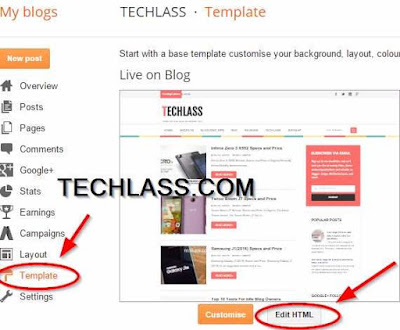
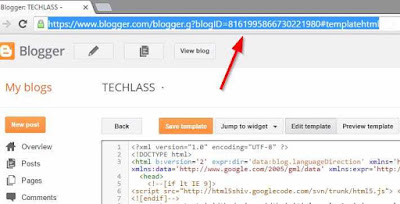
To resolve Blogger hangs while trying to edit the template, access your blog:- Goto Template
- Select Edit HTML
 |
| Blogger Template |
- On the loaded page, navigate to the address bar on your bar
- Copy the entire URL of that page.
 |
- Close the page.
- Open a new tab or widow and paste the URL you copied from the freezing page.
- The editing section of your template should now load without freezing.
Also Read: How To Embed PDF, DOC, XLS And PPT Files In Blogger
How to Disable Right Click On Blogger - Stop Copy Paste
Add Read More Attribution Links to Copied Text in Blogger
I hope this tutorial helped you resolve problems with blogger template freezing your browser or computer, if it didnt, there are more than 1,000 results on Google, youll definitely find one that works for you. Keep on searching and dont break a sweat, ciao!!
Go to link download
Friday, October 21, 2016
50 Best Free Blogger Templates 2016
50 Best Free Blogger Templates 2016
Below is a list of best free blogger templates released on January 2015. These are all SEO friendly, responsive beautiful high quality free blogger templates 2015 that you can use in improving your blogs design and optimize your blog for search engines.With these blogger templates, you can make your blog look professional and attractive to your visitors. Download and upload any to your blog, then make a few changes to suit your requirement.


Fabulous Responsive Blogger Template
Fabulous is a blogger template with responsive design and it’s High User Friendly Blogger Template. It’s design simple and clean, perfect for a variety of purposes, although focused towards Photographers and those using Portfolios to display their past and present work collections.
Live Demo Download
Style Blog Responsive Blogger Template
Style Blog is a Complete Blogger theme for a news or magazine site with the focus of attracting and keeping visitors on their site. It uses the best clean SEO practices, and on top of that, it’ s fast, simple, and easy to use.
Live Demo Download
Social Mag Responsive Blogger Template
Social Mag is a based on Modern UI with futuristic interface. With features that makes it social media friendly. You’ll find almost all key features on this template that are needed to run a blog or a magazine based site.
Live Demo Download
Newsline Responsive Blogger Template
Newsline Responsive Blogger Template is a stylish news free blogger template. Newsline have many features like recent news a stylish layout with modern look. Newsline is a completely responsive blogger template which is suitable for Tech, News, Multimedia niche.
Live Demo Download
Sora Moon Responsive Blogger Template
Sora Moon is a minimal Theme designed for blogger. It provides many features that blogger will love it. Sticky post, Social share in each post, many post formats such as Video, Audio, Soundcloud(audio).
Live Demo Download
Creative – Clean & Responsive Blogger Template
Creative is a beautifully minimalistic portfolio Responsive Blogger template, making your talent the focal point of your portfolio – the way it should be. Present your work in a professional manner with a timeless design.
Live Demo Download
Soone Responsive & Retina Ready Blogger Coming Soon Template
It is a professional, responsive and retina ready HTML5 coming soon template. Soone comes complete with single image. It also has a handy modal box containing a countdown to your launch date.
Live Demo Download
LollyPop Responsive Blogger Template
LollyPop is a feature rich Blogger Template which comprise of clean design and flexible functionalities and it is designed for stylish bloggers. By using this Template you can get the professional way to well design a fully fledged magazine website.
Live Demo Download
iGenius Responsive Blogger Template
iGenius Is Responsive Blogger Template With Minimalist, Clean, Elegant And Modern Design. Supporting 5 Post Formats Including Standard, Image, Gallery, Audio, And Video Which Give You Easiness In Displaying Your Content With Various Formats.
Live Demo Download
Mrbelle Multipurpose Flat Bootstrap Responsive Blogger Template
Mr Belle is a clean, flat and professional Multipurpose Template for agencies and creative studios. It can be customized easily to suit your wishes. That comes with a free Flat Responsive web design template.
Live Demo Download
Movie Mag Responsive Blogger Template
Movie Mag is a unique Entertainment Blogger Template which is suitable for any type of Cinema, Movie Promotion, Theatres, Blogs and Movie Communities no matter the size. Movie Mag comes with a separate framework that is built with latest technologies like CSS3 and HTML5.
Live Demo Download
Aquarius Blogger Template
Aquarius is a minimal one column Blogger theme with clean Georgia-based typography, built mainly for a personal bloggers. Aquarius Blogger Template let your users concentrate on reading, while you do the writing. This blogger template has auto post summaries, social buttons, 3 columns footer widget area, related posts, Google fonts and more.
Live Demo Download
Optimal Responsive Blogger Template
This Elegant And Professional News Theme Is Great For Anyone Looking Display A Lot Of Content In A Clean And Userfriendly Manner. Featuring A 3-column Grid And Many Homepage Content Outlets, This Theme Gives You The Opportunity To Feature Tons Of Content Without Making Your Website Feel Cramped Or Messy.
Live Demo Download
Techy Responsive Blogger Template
Techy is specially designed for those, who are looking for a template in order to share the latest news, discoveries, articles, tutorials, some hot tips with your readers. Techy is also a best choice for sharing things on the web with the audience and to run a website that will have in and out information about a particular subject.
Live Demo Download
Salsa Blogger Template
A humanist template for Blogger. Salsa is a personal template for writer designed to focus on what you want to tell and share, with a simple, unobtrusive and distraction-free layout.
Live Demo Download
Grace Responsive Blogger Template
Grace Responsive Blogger Template, A Simple, clean, elegant, Minimalist theme specially designed for all kind of blog style. Grace Meets everyone’s needs whether you’re a fashion Stylish blogger, Life Style Expert, photographers or just Outfit of the day Blogger, Media Agency, Tech Blogger and many other.
Live Demo Download
iPlus Responsive Blogger Template
iPlus Is A Professional Creative Template With An Amazing Clean Layout Design, Completely Responsive And Retina To Look Perfectly In All Mobile Devices. It Is Very Nice With Its Clean And Professional Look.
Live Demo Download
Signature Responsive Blogger Template
Signature is a complete Blogger theme for a news or magazine site with the focus of attracting and keeping visitors on their site. It uses the best clean SEO practices, and on top of that, it’ s fast, simple, and easy to use.
Live Demo Download
GodMag – Flexible Magazine Template for Blogger
God Mag – Flexible Magazine Blogger Template is a professional design for magazine/news or blogging websites on Blogger / Blogspot.
Live Demo Download
Faber Blogger Template
Faber is a blogger theme was built with bloggers in mind. Faber is simple, easy to use, lightweight, 2 column, SEO optimized and fast loading Blogger theme for your blog. Faber Blogger Template comes with top menu, social and post share buttons, auto post summaries, 3 columns footer and more.
Live Demo Download
CockTail Responsive Blogger Template
CockTail is a simple blog theme for your needs and it works well with all desktop and mobile devices and has ton of built-in features. CockTail is a browser ready template so it is compatible with almost all the modern browsers, So that your visitors will love to surf your blog.
Live Demo Download
Indigo Responsive Blogger Template
Indigo Is A Blog & Magazine Type Blogger Template. You Can Use It For Your Personal Blog Or Magazine And Photography And Also On Tech Blog. Indigo Is The Perfect Combination Of Design.
Live Demo Download
Stock Blogger Template
Stock is a simple Blogger theme, inspired by minimalism and precision. Stock Blogger Template is perfect for writers and personal blogs, It SEO friendly data, 2 columns, right sidebar, top multilevel navigation, social profile buttons and post share buttons, related posts, Google fonts and more.
Live Demo Download
Clean Blogger Template for Personal Blogs
It is best suited for personal blogs and status blogs to share articles quickly.
Live Demo Download
Attitude Responsive Blogger Template
Attitude is a Beauty Blogger Template created specially for makeup blogs, hair blogs, fashion websites & general feminine blogs. Every element of this theme is well crafted and makes your site look professional website and you get maximum exposure to your content.
Live Demo Download
Sturd Blogger Template
Sturd is a lightweight, 2 column, widget ready, SEO optimized, fast loading, easy to customize Blogger theme for blogger blogs. Sturd Blogger Template has top navigation menu, related posts, right sidebar, social and share buttons, Google fonts and more.
Live Demo Download
Healthyca Blogger Template
Healthyca is a Responsive, 3 Columns Blogger Template for Health Blogs. Healthyca Blogger Template has a jQuery Slider, Header Menu and Secondary Dropdown Menu, Related Posts, Breadcrumb, 3 Columns Footer, Social Buttons, Tabbed Widget and More Features.
Live DemoGo to link download
Read more »
Tuesday, October 18, 2016
Email Subscription Widget For Blogger
Email Subscription Widget For Blogger
Add an Email Subscription Widget For Blogger below your blog posts to increase its loyal readers. Like the feedburner email subscription widget for blogger, this widget also allows your visitors to subscribe for new post on your blog, which will be sent to the email they register with. Other than the email subscription feature on this blogger widget, social follow buttons like Facebook, Google+, and twitter are included. When placed on your blog, it appears directly below the end of all posts which can be seen by all your visitors and increases the number of social subscribers to your blog posts. With the steps below, you can also add an email subscription widget for blogger in your blog.

Also Read: Customized Facebook Like Box Widget For Blogger
Social Media Follow Buttons Widget For Blogger
Floating Social Share Buttons For Blogger
Read more »
Also Read: Customized Facebook Like Box Widget For Blogger
Social Media Follow Buttons Widget For Blogger
Floating Social Share Buttons For Blogger
How to Add Email Subscription Widget In Blogger Blogs
- From your blogger dashboard, Navigate to template
- Navigate to Template.
- Click on Edit HTML
- Using Ctrl+F keys, search for <data:post.body/>
- Copy the code below and paste below the tag <data:post.body/>
- You will find more than occurence of the tag, place the code below the second or third in your template, depending on which will work on your blog.
<b:if cond=data:blog.pageType == "item">
<style type="text/css">
form.feedburner {
margin: 20px 0 0;
display: block;
clear: both;
}
.helperbloggerstyle {
background: url(https://blogger.googleusercontent.com/img/b/R29vZ2xl/AVvXsEiFQJJpEZ_E1OSHHO9okGh3dZgxOW4DaDmk6jXJqPfdergYsXomp22WRLmQPGveZ2EGUZ6Dz9A4AXiCiE-9ciDQg5TGflJ2lumcIwsDObqQrPaO-2pKNcgXjjbaMQs8eWlto1amJwcSFzy8/s1600/helperblogger.com-email-icon.png) no-repeat scroll 4px center transparent;
padding: 7px 15px 7px 35px;
color: #666;
font-weight: bold;
text-decoration: none;
border: 1px solid #D3D3D3;
-moz-border-radius: 4px;
-webkit-border-radius: 4px;
border-radius: 4px;
-moz-box-shadow: 1px 1px 2px #CCC inset;
-webkit-box-shadow: 1px 1px 2px #CCC inset;
box-shadow: 1px 1px 2px #CCC inset;
}
.helperbloggersubmit {
color: #666;
font-weight: bold;
text-decoration: none;
padding: 6px 15px;
border: 1px solid #D3D3D3;
cursor: pointer;
-moz-border-radius: 4px;
-webkit-border-radius: 4px;
-goog-ms-border-radius: 4px;
border-radius: 4px;
background: #fbfbfb;
background: -moz-linear-gradient(top, #fbfbfb 0%, #f4f4f4 100%);
background: -webkit-gradient(linear, left top, left bottom, color-stop(0%,#fbfbfb), color-stop(100%,#f4f4f4));
background: -webkit-linear-gradient(top, #fbfbfb 0%,#f4f4f4 100%);
background: -o-linear-gradient(top, #fbfbfb 0%,#f4f4f4 100%);
background: -ms-linear-gradient(top, #fbfbfb 0%,#f4f4f4 100%);
filter: progid:DXImageTransform.Microsoft.gradient( startColorstr='
#FBFBFB', endColorstr='#F4F4F4',GradientType=0 );
background: linear-gradient(top, #fbfbfb 0%,#f4f4f4 100%);
}
#helperblogger-widget {
-moz-border-radius: 10px 10px 10px 10px;
-webkit-border-radius: 10px 10px 10px 10px;
-goog-ms-border-radius: 10px 10px 10px 10px;
border-radius: 10px;
background: none repeat scroll 0 0 transparent;
border: 1px solid #D3D3D3;
padding: 8px;
-moz-transition: all 0.3s ease-out;
-o-transition: all 0.3s ease-out;
-webkit-transition: all 0.3s ease-out;
-ms-transition: all 0.3s ease-out;
transition: all 0.3s ease-out;
width: 480px;
-webkit-box-shadow: inset 0px 0px 8px rgba(50, 50, 50, 0.75);
-moz-box-shadow: inset 0px 0px 8px rgba(50, 50, 50, 0.75);
box-shadow: inset 0px 0px 8px rgba(50, 50, 50, 0.75);
-webkit-box-shadow: inset 0px 5px 0px 0px #D8D8D;
}
#helperblogger-widget:hover {
background: none repeat scroll 0 0 #FFF;
-moz-box-shadow: 1px 1px 2px #CCC inset;
-webkit-box-shadow: 1px 1px 2px #CCC inset;
box-shadow: 1px 1px 2px #CCC inset;
}
#helperblogger-widget td {
padding: 3px 0;
}
</style>
<center><br/><div id=helperblogger-widget>
<div id=emailwidget>
<table style=border:none; margin: 0px 0px 0px 0px; padding: 0px 0px 0px 0px; width=100%>
<tbody>
<tr style=border:none; margin: 0px 0px 0px 0px; padding: 0px 0px 0px 0px;>
<td align=left style=border:none; margin: 0px 0px 0px 0px; padding: 0px 0px 0px 0px;>
<p style=color:#666; font-weight: bold; font-size: 18px; margin:0px 0px 5px 0px;font-family:georgia;font-style:italic; >
Get free daily email updates!
</p>
<form action=http://feedburner.google.com/fb/a/mailverify class=feedburner method=post onsubmit=window.open('http://feedburner.google.com/fb/a/mailverify?uri=YOUR-ID', 'popupwindow', 'scrollbars=yes,width=550,height=520');return true style=margin: 0pt; target=popupwindow>
<input name=uri type=hidden value=YOUR-ID/>
<input name=loc type=hidden value=en_US/>
<input class=helperbloggerstyle name=email onblur=if (this.value == "") {this.value = "Enter your email…";} onfocus=if (this.value == "Enter your email…") {this.value = ""} type=text value=Enter your email…/>
<input alt= class=helperbloggersubmit title= type=submit value=Submit/>
</form>
</td>
<td style=border:none; margin: 0px 0px 0px 0px; padding: 0px 0px 0px 0px;>
<p style=color:#666; font-weight: bold; font-size: 14px; margin:0px 0px 5px 0px;font-family: georgia; >
Follow us!
</p>
<a href=http://feeds.feedburner.com/YOUR-ID rel=nofollow target=_blank title=Suscribe to RSS Feed><img src=https://blogger.googleusercontent.com/img/b/R29vZ2xl/AVvXsEgl5v4oWJGvyK8FOfkc7hC3wwsZ0JHZKFxMzBhMr60K4mVRAKi64oKlpDTP5mkD2yuGJ6hFt7OGV9pVOOpJpEXwd8fBvTdGWItzzJLMUm8CpVxAhWjDxVrDQNXlVH2TeVCFSLuGPp6J7B6i/s1600/helperblogger.com-rss.png/></a>
<a href=http://twitter.com/twitterUSERNAME rel=nofollow target=_blank title=Follow us on Twitter><img src=https://blogger.googleusercontent.com/img/b/R29vZ2xl/AVvXsEjS2GHnyyaKHhrlks-qGDD84cGRxoFgPFYC2R-kfAdOIZWkf-FpuLijaBJdO4QfuQTSakP-fNdsO1K7UJSpsYKdG1ScVUGmfNNzYAluBcLRiAigG2iLZ9Iwn5_xrqlSTERJwr0y67-s1dvj/s1600/helperblogger.com-twitter.png/></a>
<a href=http://www.facebook.com/facebookUSERNAME rel=<Go to link download
Subscribe to:
Posts (Atom)