Showing posts with label post. Show all posts
Showing posts with label post. Show all posts
Monday, October 31, 2016
How to Add Related Post Widget in Blogger Mobile Version
How to Add Related Post Widget in Blogger Mobile Version
A post on how to add related post widget in blogger mobile version. The related post widget in the mobile version of your blogger blog can increase your blogs pageviews especially if a higher number of visitor/readers access your blog from their phone. Since this blogger widget displays related posts without the images, it does not affect page load time of your blog. It can also reduce your blogs bounce rate beacause there is interlinking of one post to other and your visitors dont leave immediately without checking out any other post on your blog. If your blog posts have been categorized using labels, then you can follow the guidelines below on how to add related post widget without thumbnails in blogger mobile version.
Also Read: How to Add IP Widget In Blogger Blogs
Numbered Page Navigation Widget For Blogger Blogs
Most Commented Posts Widget For Blogger With Thumbnails
Step 1
Step 2
Step 3
Update:06/09/2015 Save your template without including this last step step 4.
Step 4
<b:if cond=data:top.showMobileShare>
Add Stylish Custom Search Box To Blogger
Following the steps above, the related post widget without thumbnails should show up in the mobile and desktop version of your blog. If it doesnt, its probably because youve not added labels in your blog posts.
Also Read: How to Add IP Widget In Blogger Blogs
Numbered Page Navigation Widget For Blogger Blogs
Most Commented Posts Widget For Blogger With Thumbnails
How to Add Related Post Widget Without Thumnails In Blogger
Step 1
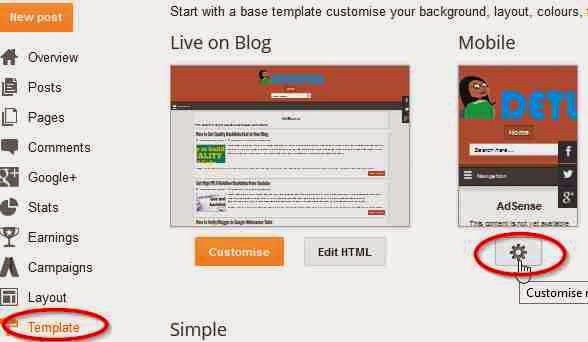
- From your blogger dashboard,
- Goto Template.
- Click on the gear mobile settings icon
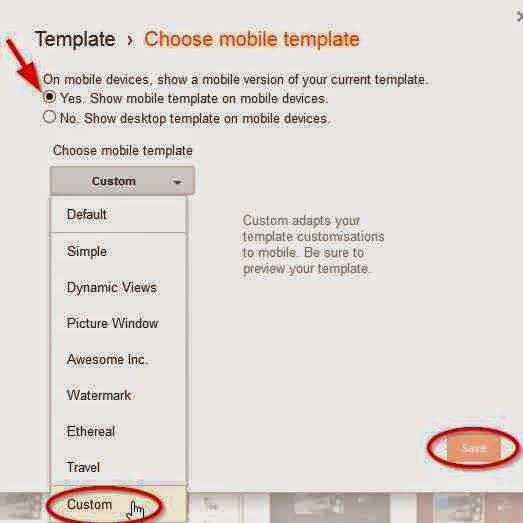
- Select the button option, Yes show mobile template on mobile devices
- From the drop down menu, choose the option custom
- Click on Save to enable your changes.
Step 2
- Next, Still in your template
- Click on Edit HTML
- Using Ctrl+F keys, search for the tag </head>
- Copy the code below and paste above </head>
<!--Related Posts Scripts and Styles Start-->
<style>
#related-posts {
float : left;
width : 350px;
margin-top:20px;
margin-left : 5px;
margin-bottom:20px;
font : 11px Verdana;
margin-bottom:10px;
}
#related-posts .widget {
list-style-type : none;
margin : 5px 0 5px 0;
padding : 0;
}
#related-posts .widget h2, #related-posts h2 {
font-size : 20px;
font-weight : normal;
margin : 5px 7px 0;
padding : 0 0 5px;
}
#related-posts a {
text-decoration : none;
}
#related-posts a:hover {
text-decoration : none;
}
#related-posts ul {
border : medium none;
margin : 10px;
padding : 0;
}
#related-posts ul li {
display : block;
background : url("https://blogger.googleusercontent.com/img/b/R29vZ2xl/AVvXsEg_rJsGTn3oSMisqJfpwoKyKwMUQJuFyBKNrNiHB69R38HrlwyR_ZAgwbRSF4yq_YSyII4Rp25f0ny3x1EPF5eS4x2iLWHcScqOoUN1A-hoHyFKehHnA0OkznIrlHexIOKtjTPiZBMS8T0/s200/greentickbullet.png") no-repeat 0 0;
margin : 0;
padding-top : 0;
padding-right : 0;
padding-bottom : 1px;
padding-left : 21px;
margin-bottom : 5px;
line-height : 2em;
border-bottom:1px dotted #cccccc;
}
</style>
<script type=text/javascript>
//<![CDATA[
var relatedTitles = new Array();
var relatedTitlesNum = 0;
var relatedUrls = new Array();
function related_results_labels(json) {
for (var i = 0; i < json.feed.entry.length; i++) {
var entry = json.feed.entry[i];
relatedTitles[relatedTitlesNum] = entry.title.$t;
for (var k = 0; k < entry.link.length; k++) {
if (entry.link[k].rel == alternate) {
relatedUrls[relatedTitlesNum] = entry.link[k].href;
relatedTitlesNum++;
break;
}
}
}
}
function removeRelatedDuplicates() {
var tmp = new Array(0);
var tmp2 = new Array(0);
for(var i = 0; i < relatedUrls.length; i++) {
if(!contains(tmp, relatedUrls[i])) {
tmp.length += 1;
tmp[tmp.length - 1] = relatedUrls[i];
tmp2.length += 1;
tmp2[tmp2.length - 1] = relatedTitles[i];
}
}
relatedTitles = tmp2;
relatedUrls = tmp;
}
function contains(a, e) {
for(var j = 0; j < a.length; j++) if (a[j]==e) return true;
return false;
}
function printRelatedLabels() {
var r = Math.floor((relatedTitles.length - 1) * Math.random());
var i = 0;
document.write(<ul>);
while (i < relatedTitles.length && i < 20) {
document.write(<li><a href=" + relatedUrls[r] + "> + relatedTitles[r] + </a></li>);
if (r < relatedTitles.length - 1) {
r++;
} else {
r = 0;
}
i++;
}
document.write(</ul>);
document.write(<a href="http://www.techlass.com/2015/04/add-related-post-widget-in-blogger-mobile-version.html " target="_blank" rel="dofollow"><font size="1" color="black">[Get Related Posts Widget]</font></a>);
}
//]]>
</script>
<!--Related Posts Scripts and Styles End-->
Step 3
- In your template, Search for
<div class=post-footer-line post-footer-line-1>
OR SEARCH FOR
<p class=post-footer-line post-footer-line-1>
- Copy the code below and paste below any of the lines of code above which you could find in your template.
<!-- Related Posts with Thumbnails Code Start-->
<b:if cond=data:blog.pageType == "item">
<div id=related-posts>
<font face=Arial size=3><b>Related Posts: </b></font><font color=#FFFFFF><b:loop values=data:post.labels var=label><data:label.name/><b:if cond=data:label.isLast != "true">,</b:if><b:if cond=data:blog.pageType == "item">
<script expr:src="/feeds/posts/default/-/" + data:label.name + "?alt=json-in-script&callback=related_results_labels&max-results=5" type=text/javascript/></b:if></b:loop> </font>
<script type=text/javascript> removeRelatedDuplicates(); printRelatedLabels();
</script>
</div>
</b:if>
<!-- Related Posts with Thumbnails Code End-->
Update:06/09/2015 Save your template without including this last step step 4.
Step 4
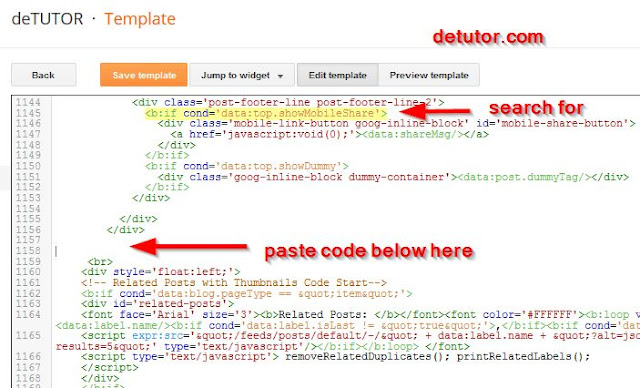
- Still in your template, use CTRL+ F keys to search for this line of code below
<b:if cond=data:top.showMobileShare>
- Below the line of code above, scroll down and search for the fourth </div>
- Copy the code below and paste below the fourth </div> as shown in the image below
<br>
<div style=float:left;>
<!-- Related Posts with Thumbnails Code Start-->
<b:if cond=data:blog.pageType == "item">
<div id=related-posts>
<font face=Arial size=3><b>Related Posts: </b></font><font color=#FFFFFF><b:loop values=data:post.labels var=label><data:label.name/><b:if cond=data:label.isLast != "true">,</b:if><b:if cond=data:blog.pageType == "item">
<script expr:src="/feeds/posts/default/-/" + data:label.name + "?alt=json-in-script&callback=related_results_labels&max-results=5" type=text/javascript/></b:if></b:loop> </font>
<script type=text/javascript> removeRelatedDuplicates(); printRelatedLabels();
</script>
</div>
</b:if>
<!-- Related Posts with Thumbnails Code End-->
</div></br>
- Save your template.
Add Stylish Custom Search Box To Blogger
Following the steps above, the related post widget without thumbnails should show up in the mobile and desktop version of your blog. If it doesnt, its probably because youve not added labels in your blog posts.
Go to link download

Tuesday, August 30, 2016
How to Make Your Blog Post SEO Friendly
How to Make Your Blog Post SEO Friendly
Search Engine Optimization
Given below are tips on how to make your blog post SEO Friendly. Search engine optimization is a technique used by webmasters to improve their sites rank and visibility on search engines like Google and Bing, thereby increasing traffic to their site. These SEO techniques are either on page or off page SEO. For on page SEO, it involves optimizing images, content etc on the site and for off page SEO, it basically involves the act of link building.For your blog posts to perform well in search engine results by ranking high, it has to be well optimized using both on page and off page SEO techniques Although there are several sources of traffic like social networks and forums, they all require constant sharing of your blog posts to them. Receiving traffic from search engines is better and requires less effort after sometime. This is because the amount of traffic is higher and youre not required to continually share your post like in the case of social networks and forums. A well optimized post can drive free traffic to your site for months or even years. In this post, ways on on how optimize your blog post for search engines have been given.
Also Read: Google SEO Ranking Factors
How to Use Google Webmaster Tools For SEO
Optimize H1,H2 and H3 Heading Tags In Blogger
How to Optimize Your Blog Post For Search Engines
Keywords:
- Title Of Post:
Including keywords in the title of the post can rank your post higher in search engine result pages. Although most tutorials on net will advice you to use catchy titles, this is good but in the process of attracting your readers to read your post, you should also ensure search engines can find the post by ensuring keywords are in the title especially at the beginning. Youll notice that exact matches to the string entered on Google search usually rank higher than the ones that arent exactly the same to the entered string. But this is not true in all cases.
- URL:
Also, you can edit the URL of a post before publishing it or after it has been published by including keywords in the URL. Remove any irrelevant word or stop words like to from the URL but do it in a way that it still makes sense when read out loud. Even though theyre just search engine bots, theyre smarter than you can imagine
- Within Post:
Including keywords at the beginning and at the end of the post. Repeating your keywords several times within the body of the post can also help in ranking your blog higher in search engines. While doing so, you should ensure you dont go beyond the limit to avoid keyword stuffing. Most SEO experts advice on having keywords thrice in the entire post or keywords after 100 every words in your post.
Length of Post:
A longer post when compared with a shorter post can perform better in search engine results. To increase the chances that your blog posts will come up in search engines for different related terms, you need to increase the length of the post you publish. Increasing the length doesnt mean you should just add unnecessary content to the your post thereby making it hard for your readers to read and understand. Carry out research on the topic youll like to write on, so that you dont run out of ideas on what to include in your post.
Search description:
For blogger blogs, youre allowed to include a search description in individual post on your blog. Include a search description for all the posts. The description is a way of telling search engines what the post is all about and help can rank your post higher. This description should contain your keywords and not exceed 155 characters.
Labels:
Another way of optimizing your posts for search engines is by adding relevant labels that are related to the post. For the labels, you can use keywords that actually describe the post and not generic keywords. In this post for example, the labels used are SEO optimization, SEO friendly, Blogging tips, On page optimization techniques instead of Blogging, Blogger, Blogging Tips.Backlinks:
After publishing the post, another effective method and ill say the most effective SEO techique to use in improving its visibility is building backlinks to the post. You can share the post to forums, social bookmarking sites, comment on other blogs or even guest post. Another advantage of doing this is that it will help in indexing the post faster and give your site a better alexa rank.
Image Optimization:
Optimizing the images used in your blog posts by adding alt tags. These alt tags describe the image and since images are usually included in search results, you can also use this method to drive traffic to your blog.
Also Read: How to Make Blogger Template SEO Friendly
SEO Tools - Firefox Addons for Search Engine Optimization
With the above tips, you can optimize your site for search engines and drive traffic to your site .
Go to link download
Thursday, August 18, 2016
Add Floating Social Share Buttons Below Blogger Post Title
Add Floating Social Share Buttons Below Blogger Post Title
Steps on How to Add Floating Social Share Buttons Below Blogger Post Title are given in this post. Including social media share buttons can help in boosting a blogs traffic because the post goes viral on these social bookmarking sites. Since this social share widget is a floating/sticky one, where its visible to all your readers as they scroll up and down, it makes it easier for them to share your blog post. Included on this social share widget are Facebook, Twitter, Pinterest and Google+ buttons. Follow the steps below to add one to your blog.
Also Read: Social Follow and Subscription Widget For Blogger
Facebook Popup Like Box With Timer For Blogger
Sliding Recent Posts Widget For Blogger
For the last code below:
To place the floating share buttons below the post title,
Also Read: Social Follow and Subscription Widget For Blogger
Facebook Popup Like Box With Timer For Blogger
Sliding Recent Posts Widget For Blogger
How to Add Floating Social Share Buttons Below Blogger Post Title
- Click on Edit HTML
- With ctrl+F keys, search for this tag </head>
- Copy the code below and paste above </head>
<script src=http://ajax.googleapis.com/ajax/libs/jquery/1.7.1/jquery.min.js type=text/javascript/>

<script type=text/javascript>
//<![CDATA[
$(function() {
var $movesbuttons = $("#floating-social-buttons"),
$window = $(window),
offset = $movesbuttons.offset();
$window.scroll(function() {
if ($window.scrollTop() > offset.top) {
$movesbuttons.css({position : fixed, width : 550px, top : 0px});
} else {
$movesbuttons.css({position : absolute, top : auto});
}
});
});
//]]>
</script>
- Next, Search for ]]></b:skin> in your template.
- Copy this code below and paste above ]]></b:skin>
#floating-social-buttons {
padding: 6px 0px 12px;
position: absolute;
background: #F6F6F6;
border-bottom: 1px solid #DEDEDE;
width: 550px;
height: 18px;
z-index: 99;
}
.floating-social-buttons {
margin-left: 5px !important;
}
.floating-social-buttons li {
float: left;
margin-left: 5px;
list-style:none;
}
For the last code below:
To place the floating share buttons below the post title,
- Search for <div class=post-header>
- Copy the code and paste below the second <div class=post-header> you find in your template.
- Search for <div class=post-header>
- Copy the code and paste below the second <div class=post-footer> .
<b:if cond=data:blog.pageType == "item">
<div style=padding:5px 0 35px 0;clear:both;>
<div id=floating-social-buttons>
<ul class=floating-social-buttons>
<li><iframe allowTransparency=true expr:src="http://www.facebook.com/plugins/like.php?href=" + data:post.url+ "&layout=button_count&show_faces=false&width=100&height=25&action=like&font=tahoma&colorscheme=light" frameborder=0 scrolling=no style=border:none; overflow:hidden; width:100px; height:25px;/></li>
<li><a class=twitter-share-button data-lang=en href=https://twitter.com/share>Tweet</a><script src=//platform.twitter.com/widgets.js type=text/javascript/></li>
<li><script src=http://apis.google.com/js/plusone.js type=text/javascript/><g:plusone expr:href=data:post.url size=medium/></li>
<li><a class=pin-it-button count-layout=horizontal expr:href="http://pinterest.com/pin/create/button/?url=" + data:post.url + "&media=" + data:post.thumbnailUrl + "&description=" + data:post.snippet style=margin:0 10px 5px 0;>Pin It</a> <script src=http://assets.pinterest.com/js/pinit.js type=text/javascript/></li>
</ul>
</div>
</div>
</b:if>
- Save your template.
Go to link download
Monday, August 15, 2016
Showing Post Title Before Blog Title In Search Results
Showing Post Title Before Blog Title In Search Results
Showing post titles before blog title in search results to optimize our blogs is one of the SEO techniques that all bloggers should implement. By default, In search results, the post title usually appears after the blog title leading to a lower ranking of the blog/site. This is because the number of characters to be displayed in search results for each title which is usually 66 on Google, might be exceeded while some keywords in the post title are not included in the search title. Visitors also consider, "How related is the title to their search", which determines if the title leading to the post will get clicked on or not. This can affect a blogs traffic and its pageviews and in turn, how much it actually makes. By changing the default settings in blogger, we can easily make the blog post title show before the blog title. To do this, Follow the steps on how to display post title before blog title.
Also Read: How to Add Search Description In Blogger
How to Add Custom Robots Header Tags In Blogger
Automatically Add Nofollow Attribute to All External Links In Blogger
.

Automatically Open all External Links in a New Window On Blogger
All In One SEO Pack Plugin 2015 For Blogger
Also Read: How to Add Search Description In Blogger
How to Add Custom Robots Header Tags In Blogger
Automatically Add Nofollow Attribute to All External Links In Blogger
.
How To Optimize Blog Post Title
- From your Blogger Dashboard.
- Goto Template.
- Click on Edit HTML (ensure you backup your template before proceeding)
- Click inside your template, Using Ctrl+F keys search for :
<title><data:blog.pageTitle/></title>
- On finding the code above, Replace it with this lines of code below
<b:if cond=data:blog.pageType == "item">
<title><data:blog.pageName/> | <data:blog.title/></title>
<b:else/>
<title><data:blog.pageTitle/></title>
</b:if>
- Save the template.
Automatically Open all External Links in a New Window On Blogger
All In One SEO Pack Plugin 2015 For Blogger
Go to link download
Subscribe to:
Posts (Atom)