Showing posts with label widget. Show all posts
Showing posts with label widget. Show all posts
Monday, October 31, 2016
How to Add Related Post Widget in Blogger Mobile Version
How to Add Related Post Widget in Blogger Mobile Version
A post on how to add related post widget in blogger mobile version. The related post widget in the mobile version of your blogger blog can increase your blogs pageviews especially if a higher number of visitor/readers access your blog from their phone. Since this blogger widget displays related posts without the images, it does not affect page load time of your blog. It can also reduce your blogs bounce rate beacause there is interlinking of one post to other and your visitors dont leave immediately without checking out any other post on your blog. If your blog posts have been categorized using labels, then you can follow the guidelines below on how to add related post widget without thumbnails in blogger mobile version.
Also Read: How to Add IP Widget In Blogger Blogs
Numbered Page Navigation Widget For Blogger Blogs
Most Commented Posts Widget For Blogger With Thumbnails
Step 1
Step 2
Step 3
Update:06/09/2015 Save your template without including this last step step 4.
Step 4
<b:if cond=data:top.showMobileShare>
Add Stylish Custom Search Box To Blogger
Following the steps above, the related post widget without thumbnails should show up in the mobile and desktop version of your blog. If it doesnt, its probably because youve not added labels in your blog posts.
Also Read: How to Add IP Widget In Blogger Blogs
Numbered Page Navigation Widget For Blogger Blogs
Most Commented Posts Widget For Blogger With Thumbnails
How to Add Related Post Widget Without Thumnails In Blogger
Step 1
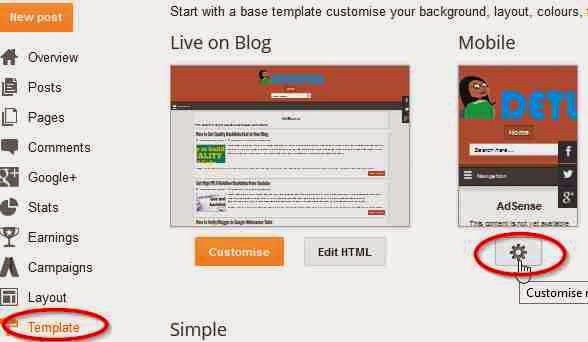
- From your blogger dashboard,
- Goto Template.
- Click on the gear mobile settings icon
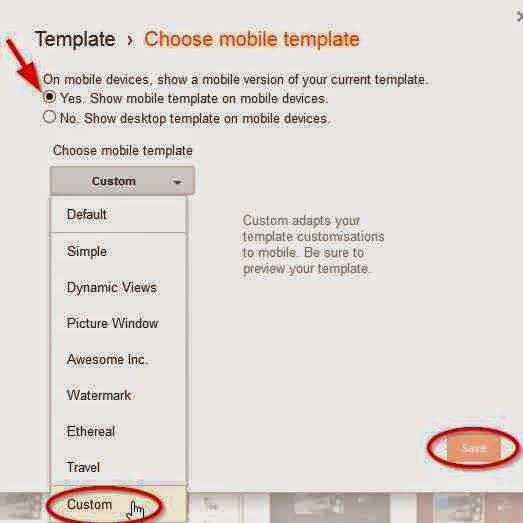
- Select the button option, Yes show mobile template on mobile devices
- From the drop down menu, choose the option custom
- Click on Save to enable your changes.
Step 2
- Next, Still in your template
- Click on Edit HTML
- Using Ctrl+F keys, search for the tag </head>
- Copy the code below and paste above </head>
<!--Related Posts Scripts and Styles Start-->
<style>
#related-posts {
float : left;
width : 350px;
margin-top:20px;
margin-left : 5px;
margin-bottom:20px;
font : 11px Verdana;
margin-bottom:10px;
}
#related-posts .widget {
list-style-type : none;
margin : 5px 0 5px 0;
padding : 0;
}
#related-posts .widget h2, #related-posts h2 {
font-size : 20px;
font-weight : normal;
margin : 5px 7px 0;
padding : 0 0 5px;
}
#related-posts a {
text-decoration : none;
}
#related-posts a:hover {
text-decoration : none;
}
#related-posts ul {
border : medium none;
margin : 10px;
padding : 0;
}
#related-posts ul li {
display : block;
background : url("https://blogger.googleusercontent.com/img/b/R29vZ2xl/AVvXsEg_rJsGTn3oSMisqJfpwoKyKwMUQJuFyBKNrNiHB69R38HrlwyR_ZAgwbRSF4yq_YSyII4Rp25f0ny3x1EPF5eS4x2iLWHcScqOoUN1A-hoHyFKehHnA0OkznIrlHexIOKtjTPiZBMS8T0/s200/greentickbullet.png") no-repeat 0 0;
margin : 0;
padding-top : 0;
padding-right : 0;
padding-bottom : 1px;
padding-left : 21px;
margin-bottom : 5px;
line-height : 2em;
border-bottom:1px dotted #cccccc;
}
</style>
<script type=text/javascript>
//<![CDATA[
var relatedTitles = new Array();
var relatedTitlesNum = 0;
var relatedUrls = new Array();
function related_results_labels(json) {
for (var i = 0; i < json.feed.entry.length; i++) {
var entry = json.feed.entry[i];
relatedTitles[relatedTitlesNum] = entry.title.$t;
for (var k = 0; k < entry.link.length; k++) {
if (entry.link[k].rel == alternate) {
relatedUrls[relatedTitlesNum] = entry.link[k].href;
relatedTitlesNum++;
break;
}
}
}
}
function removeRelatedDuplicates() {
var tmp = new Array(0);
var tmp2 = new Array(0);
for(var i = 0; i < relatedUrls.length; i++) {
if(!contains(tmp, relatedUrls[i])) {
tmp.length += 1;
tmp[tmp.length - 1] = relatedUrls[i];
tmp2.length += 1;
tmp2[tmp2.length - 1] = relatedTitles[i];
}
}
relatedTitles = tmp2;
relatedUrls = tmp;
}
function contains(a, e) {
for(var j = 0; j < a.length; j++) if (a[j]==e) return true;
return false;
}
function printRelatedLabels() {
var r = Math.floor((relatedTitles.length - 1) * Math.random());
var i = 0;
document.write(<ul>);
while (i < relatedTitles.length && i < 20) {
document.write(<li><a href=" + relatedUrls[r] + "> + relatedTitles[r] + </a></li>);
if (r < relatedTitles.length - 1) {
r++;
} else {
r = 0;
}
i++;
}
document.write(</ul>);
document.write(<a href="http://www.techlass.com/2015/04/add-related-post-widget-in-blogger-mobile-version.html " target="_blank" rel="dofollow"><font size="1" color="black">[Get Related Posts Widget]</font></a>);
}
//]]>
</script>
<!--Related Posts Scripts and Styles End-->
Step 3
- In your template, Search for
<div class=post-footer-line post-footer-line-1>
OR SEARCH FOR
<p class=post-footer-line post-footer-line-1>
- Copy the code below and paste below any of the lines of code above which you could find in your template.
<!-- Related Posts with Thumbnails Code Start-->
<b:if cond=data:blog.pageType == "item">
<div id=related-posts>
<font face=Arial size=3><b>Related Posts: </b></font><font color=#FFFFFF><b:loop values=data:post.labels var=label><data:label.name/><b:if cond=data:label.isLast != "true">,</b:if><b:if cond=data:blog.pageType == "item">
<script expr:src="/feeds/posts/default/-/" + data:label.name + "?alt=json-in-script&callback=related_results_labels&max-results=5" type=text/javascript/></b:if></b:loop> </font>
<script type=text/javascript> removeRelatedDuplicates(); printRelatedLabels();
</script>
</div>
</b:if>
<!-- Related Posts with Thumbnails Code End-->
Update:06/09/2015 Save your template without including this last step step 4.
Step 4
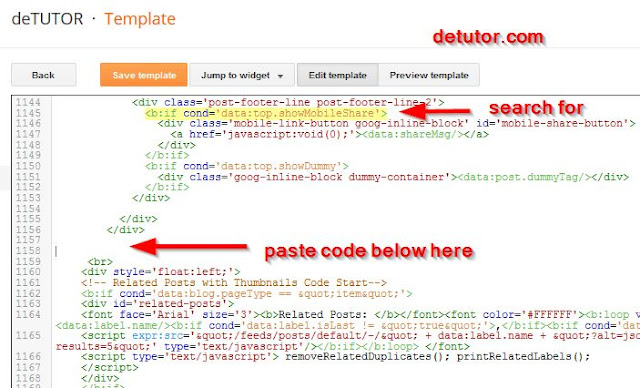
- Still in your template, use CTRL+ F keys to search for this line of code below
<b:if cond=data:top.showMobileShare>
- Below the line of code above, scroll down and search for the fourth </div>
- Copy the code below and paste below the fourth </div> as shown in the image below
<br>
<div style=float:left;>
<!-- Related Posts with Thumbnails Code Start-->
<b:if cond=data:blog.pageType == "item">
<div id=related-posts>
<font face=Arial size=3><b>Related Posts: </b></font><font color=#FFFFFF><b:loop values=data:post.labels var=label><data:label.name/><b:if cond=data:label.isLast != "true">,</b:if><b:if cond=data:blog.pageType == "item">
<script expr:src="/feeds/posts/default/-/" + data:label.name + "?alt=json-in-script&callback=related_results_labels&max-results=5" type=text/javascript/></b:if></b:loop> </font>
<script type=text/javascript> removeRelatedDuplicates(); printRelatedLabels();
</script>
</div>
</b:if>
<!-- Related Posts with Thumbnails Code End-->
</div></br>
- Save your template.
Add Stylish Custom Search Box To Blogger
Following the steps above, the related post widget without thumbnails should show up in the mobile and desktop version of your blog. If it doesnt, its probably because youve not added labels in your blog posts.
Go to link download

Tuesday, October 18, 2016
Email Subscription Widget For Blogger
Email Subscription Widget For Blogger
Add an Email Subscription Widget For Blogger below your blog posts to increase its loyal readers. Like the feedburner email subscription widget for blogger, this widget also allows your visitors to subscribe for new post on your blog, which will be sent to the email they register with. Other than the email subscription feature on this blogger widget, social follow buttons like Facebook, Google+, and twitter are included. When placed on your blog, it appears directly below the end of all posts which can be seen by all your visitors and increases the number of social subscribers to your blog posts. With the steps below, you can also add an email subscription widget for blogger in your blog.

Also Read: Customized Facebook Like Box Widget For Blogger
Social Media Follow Buttons Widget For Blogger
Floating Social Share Buttons For Blogger
Read more »
Also Read: Customized Facebook Like Box Widget For Blogger
Social Media Follow Buttons Widget For Blogger
Floating Social Share Buttons For Blogger
How to Add Email Subscription Widget In Blogger Blogs
- From your blogger dashboard, Navigate to template
- Navigate to Template.
- Click on Edit HTML
- Using Ctrl+F keys, search for <data:post.body/>
- Copy the code below and paste below the tag <data:post.body/>
- You will find more than occurence of the tag, place the code below the second or third in your template, depending on which will work on your blog.
<b:if cond=data:blog.pageType == "item">
<style type="text/css">
form.feedburner {
margin: 20px 0 0;
display: block;
clear: both;
}
.helperbloggerstyle {
background: url(https://blogger.googleusercontent.com/img/b/R29vZ2xl/AVvXsEiFQJJpEZ_E1OSHHO9okGh3dZgxOW4DaDmk6jXJqPfdergYsXomp22WRLmQPGveZ2EGUZ6Dz9A4AXiCiE-9ciDQg5TGflJ2lumcIwsDObqQrPaO-2pKNcgXjjbaMQs8eWlto1amJwcSFzy8/s1600/helperblogger.com-email-icon.png) no-repeat scroll 4px center transparent;
padding: 7px 15px 7px 35px;
color: #666;
font-weight: bold;
text-decoration: none;
border: 1px solid #D3D3D3;
-moz-border-radius: 4px;
-webkit-border-radius: 4px;
border-radius: 4px;
-moz-box-shadow: 1px 1px 2px #CCC inset;
-webkit-box-shadow: 1px 1px 2px #CCC inset;
box-shadow: 1px 1px 2px #CCC inset;
}
.helperbloggersubmit {
color: #666;
font-weight: bold;
text-decoration: none;
padding: 6px 15px;
border: 1px solid #D3D3D3;
cursor: pointer;
-moz-border-radius: 4px;
-webkit-border-radius: 4px;
-goog-ms-border-radius: 4px;
border-radius: 4px;
background: #fbfbfb;
background: -moz-linear-gradient(top, #fbfbfb 0%, #f4f4f4 100%);
background: -webkit-gradient(linear, left top, left bottom, color-stop(0%,#fbfbfb), color-stop(100%,#f4f4f4));
background: -webkit-linear-gradient(top, #fbfbfb 0%,#f4f4f4 100%);
background: -o-linear-gradient(top, #fbfbfb 0%,#f4f4f4 100%);
background: -ms-linear-gradient(top, #fbfbfb 0%,#f4f4f4 100%);
filter: progid:DXImageTransform.Microsoft.gradient( startColorstr='
#FBFBFB', endColorstr='#F4F4F4',GradientType=0 );
background: linear-gradient(top, #fbfbfb 0%,#f4f4f4 100%);
}
#helperblogger-widget {
-moz-border-radius: 10px 10px 10px 10px;
-webkit-border-radius: 10px 10px 10px 10px;
-goog-ms-border-radius: 10px 10px 10px 10px;
border-radius: 10px;
background: none repeat scroll 0 0 transparent;
border: 1px solid #D3D3D3;
padding: 8px;
-moz-transition: all 0.3s ease-out;
-o-transition: all 0.3s ease-out;
-webkit-transition: all 0.3s ease-out;
-ms-transition: all 0.3s ease-out;
transition: all 0.3s ease-out;
width: 480px;
-webkit-box-shadow: inset 0px 0px 8px rgba(50, 50, 50, 0.75);
-moz-box-shadow: inset 0px 0px 8px rgba(50, 50, 50, 0.75);
box-shadow: inset 0px 0px 8px rgba(50, 50, 50, 0.75);
-webkit-box-shadow: inset 0px 5px 0px 0px #D8D8D;
}
#helperblogger-widget:hover {
background: none repeat scroll 0 0 #FFF;
-moz-box-shadow: 1px 1px 2px #CCC inset;
-webkit-box-shadow: 1px 1px 2px #CCC inset;
box-shadow: 1px 1px 2px #CCC inset;
}
#helperblogger-widget td {
padding: 3px 0;
}
</style>
<center><br/><div id=helperblogger-widget>
<div id=emailwidget>
<table style=border:none; margin: 0px 0px 0px 0px; padding: 0px 0px 0px 0px; width=100%>
<tbody>
<tr style=border:none; margin: 0px 0px 0px 0px; padding: 0px 0px 0px 0px;>
<td align=left style=border:none; margin: 0px 0px 0px 0px; padding: 0px 0px 0px 0px;>
<p style=color:#666; font-weight: bold; font-size: 18px; margin:0px 0px 5px 0px;font-family:georgia;font-style:italic; >
Get free daily email updates!
</p>
<form action=http://feedburner.google.com/fb/a/mailverify class=feedburner method=post onsubmit=window.open('http://feedburner.google.com/fb/a/mailverify?uri=YOUR-ID', 'popupwindow', 'scrollbars=yes,width=550,height=520');return true style=margin: 0pt; target=popupwindow>
<input name=uri type=hidden value=YOUR-ID/>
<input name=loc type=hidden value=en_US/>
<input class=helperbloggerstyle name=email onblur=if (this.value == "") {this.value = "Enter your email…";} onfocus=if (this.value == "Enter your email…") {this.value = ""} type=text value=Enter your email…/>
<input alt= class=helperbloggersubmit title= type=submit value=Submit/>
</form>
</td>
<td style=border:none; margin: 0px 0px 0px 0px; padding: 0px 0px 0px 0px;>
<p style=color:#666; font-weight: bold; font-size: 14px; margin:0px 0px 5px 0px;font-family: georgia; >
Follow us!
</p>
<a href=http://feeds.feedburner.com/YOUR-ID rel=nofollow target=_blank title=Suscribe to RSS Feed><img src=https://blogger.googleusercontent.com/img/b/R29vZ2xl/AVvXsEgl5v4oWJGvyK8FOfkc7hC3wwsZ0JHZKFxMzBhMr60K4mVRAKi64oKlpDTP5mkD2yuGJ6hFt7OGV9pVOOpJpEXwd8fBvTdGWItzzJLMUm8CpVxAhWjDxVrDQNXlVH2TeVCFSLuGPp6J7B6i/s1600/helperblogger.com-rss.png/></a>
<a href=http://twitter.com/twitterUSERNAME rel=nofollow target=_blank title=Follow us on Twitter><img src=https://blogger.googleusercontent.com/img/b/R29vZ2xl/AVvXsEjS2GHnyyaKHhrlks-qGDD84cGRxoFgPFYC2R-kfAdOIZWkf-FpuLijaBJdO4QfuQTSakP-fNdsO1K7UJSpsYKdG1ScVUGmfNNzYAluBcLRiAigG2iLZ9Iwn5_xrqlSTERJwr0y67-s1dvj/s1600/helperblogger.com-twitter.png/></a>
<a href=http://www.facebook.com/facebookUSERNAME rel=<Go to link download
Friday, October 14, 2016
Recent Comments Widget For Blogger
Recent Comments Widget For Blogger
Including a recent comments widget for blogger in your blog encourages readers to drop comments which increases the engagement on your blog. This blogger widget shows the most recent comments by your readers and the particular post which the comments were made. You can add it either in your blogs sidebar, or footer. This recent comments widget displays without the commentators avatar. If youll rather add a different one that displays the comments with the avatars, check out the recent comments widget for blogger with avatar.
Also Read: Auto Scrolling Recent Post Widget For Blogger
All In One SEO Pack Plugin 2015 For Blogger
Most Commented Posts Widget For Blogger With Thumbnails

Numbered Page Navigation Widget For Blogger Blogs
To customize the recent comments widget, replace the following fields in the code.
var a_rc = 5; (Change the highlighted value "5" to the number of posts to be displayed).
var m_rc = false; (change the highlighted text to true, to show the date the comment was made).
var n_rc = true; (change the highlighted text to false, to hide the post title).
var o_rc = 100; (change the value "100", to increase or reduce the number of characters shown for each comment).
Style 2

Also Read: Auto Scrolling Recent Post Widget For Blogger
All In One SEO Pack Plugin 2015 For Blogger
Most Commented Posts Widget For Blogger With Thumbnails
How to Add Recent Comments Widget to Blogger
- From your blogger dashboard,
- Goto your blogs Layout.
- Click on add a gadget.
- From the pop up options, select HTML/Javascript.
- Copy the code below and paste in the text field.
<script style=text/javascript src="http://helplogger.googlecode.com/svn/trunk/recent comments widget.js"></script>
<script style=text/javascript>
 var a_rc = 5;
 var m_rc = false;
 var n_rc = true;
 var o_rc = 100;
</script>
<script src=http://YOURURL/feeds/comments/default?alt=json-in-script&callback=showrecentcomments></script><div style="font-size: 10px; float: right;">Get this <a href="http://www.detutor.com/2015/02/recent-comments-widget-for-blogger.html" rel="dofollow" >Recent Comments Widget</a></div>
<style type="text/css">
.rcw-comments a {
 text-transform: capitalize;
}

.rcw-comments {
 border-bottom: 1px dotted;
 padding-top: 7px!important;
 padding-bottom: 7px!important;
}
</style>
- In the code above, peplace YOUR-URL with your blogs URL
Numbered Page Navigation Widget For Blogger Blogs
To customize the recent comments widget, replace the following fields in the code.
var a_rc = 5; (Change the highlighted value "5" to the number of posts to be displayed).
var m_rc = false; (change the highlighted text to true, to show the date the comment was made).
var n_rc = true; (change the highlighted text to false, to hide the post title).
var o_rc = 100; (change the value "100", to increase or reduce the number of characters shown for each comment).
Style 2
<style type="text/css" media="screen">
.row-aa { background: #f2f2f3; }
.row-bb { background: #F8F5F1; }
.row-div {
margin:0px;
padding:5px;
}
.comment-header {
font-size:0.9em;
// border:1px solid #E0E0E0;
// background-color:#F3F3F3;
padding:4px;
margin-top:10px;
margin-bottom:5px;
}
.comment-box {
margin:0px;
padding:0px;
font-size:0.9em;
height:500px;
overflow:auto;
}
.comments1 {
// background: #F3F3F3;
padding:3px;
border-left:1px dashed #A6A6A6;
color: #888888;
font-style: italic;
padding-top:4px;
margin-bottom:5px;
}
.comment-footer {
text-align:center;
font-size:0.9em;
padding:4px;
margin-top:5px;
}
</style>
<div style="text-align: center" class="comment-header"><input class="comment-button" id="commshowall" type="button" onclick="if (this.value == 'Show all') { unfold_all(this); this.value='Hide all'; } else { fold_all(this); this.value='Show all'; }" style="width:8em;font-size:1em;font-family:Verdana,sans" value="Show all" /></div>
<div class="comment-box">
<script type="text/javascript" src="http://helplogger.googlecode.com/svn/trunk/expandable-recent-comments.js"></script>
<script type="text/javascript" src="http://BLOG-NAME.com/feeds/posts/default?start-index=1&max-results=999999&alt=json-in-script&callback=showrecentposts">
</script>
<script type="text/javascript" src="http://BLOG-NAME.com/feeds/comments/default?start-index=1&max-results=999999&alt=json-in-script&callback=showrecentcomments">
</script>
</div>
- Replace BLOG-NAME with your blogs URL.
- Save the gadget
Go to link download
Tuesday, September 20, 2016
Top Commentators Widget Enabled Blogs List 2016
Top Commentators Widget Enabled Blogs List 2016
High PR Top Commentators Widget Enabled Blogs List 2016
The top commentators widget on a blog displays a list of the mot active visitors with the highest number of comments. With the name, avatar and link of the visitor as displayed on the top commentators widget, you can get a link to your site from all the pages on that site. This is because the widget whose position is at the sidebar, footer etc is linked to all pages on the blog, enabling you acquire backlinks. Blog commenting has always been and still is one of the effective ways of building backlinks and increasing a sites traffic. By commenting on high PR blogs with this widget, not only will you acquire backlinks, but get targeted traffic to your site.
Also Read: Top Free High PR PPT, PDF Submission Sites List 2016
High PR Free Classified Submission Sites List 2016
Dofollow Blog Commenting Sites List
To make the most out of this top commentators widget enabled blogs, comment meaningfully on the ones related to your niche.The more comments you make on posts on the blog, then you can increase the chances of your name and comment to be featured on this widget since most blogs display the top 5. For blogger blogs, you can also add the top commentators widget in order to encourage users to drop comments and also increase the engagement on your blog of your blog.
High PR Commentators Widget Enabled Blogs
| S/N | SITE | PAGERANK |
|---|---|---|
| 1 | http://blog.cleantechies.com | 5 |
| 2 | http://moneyning.com | 5 |
| 3 | http://www.frugallawstudent.com | 5 |
| 4 | http://www.kongtechnology.com | 5 |
| 5 | http://www.theashish.com | 5 |
| 6 | http://www.whitezine.com | 5 |
| 7 | http://andrewhallam.com | 4 |
| 8 | http://blog.pertinentperils.com | 4 |
| 9 | http://blog.sqlauthority.com | 4 |
| 10 | http://blossom.nu | 4 |
| 11 | http://comluv.com | 4 |
| 12 | http://lichfieldlive.co.uk | 4 |
| 13 | http://pinoycravings.com | 4 |
| 14 | http://polyfacehenhouse.com | 4 |
| 15 | http://popculturenerd.com | 4 |
| 16 | http://rubensargsyan.com | 4 |
| 17 | http://skyhitblog.com | 4 |
| 18 | http://smallbizbee.com | 4 |
| 19 | http://technicalblogging.com | 4 |
| 20 | http://thirtysixmonths.com | 4 |
| 21 | http://webgrrrl.net | 4 |
| 22 | http://www.bartsbookshelf.co.uk | 4 |
| 23 | http://www.blogthemesclub.com/blog/ | 4 |
| 24 | http://www.canajunfinances.com | 4 |
| 25 | http://www.classycareergirl.com | 4 |
| 26 | http://www.comics.wombania.com | 4 |
| 27 | http://www.financialsamurai.com | 4 |
| 28 | http://www.jmlalonde.com | 4 |
| 29 | http://www.kimwoodbridge.com | 4 |
| 30 | http://www.milliondollarjourney.com | 4 |
| 31 | http://www.thenhbushman.com | 4 |
| 32 | http://www.travelblogs.com | 4 |
| 33 | http://www.woosk.com | 4 |
| 34 | http://writinghappiness.com | 4 |
| 35 | http://bethere2day.com | 3 |
| 36 | http://blazingminds.co.uk | 3 |
| 37 | http://blog.friday-nite.com | 3 |
| 38 | http://bloggerspassion.com | 3 |
| 39 | http://bloggingangels.com | 3 |
| 40 | http://cmashlovestoread.com | 3 |
| 41 | http://deansaliba.com | 3 |
| 42 | http://defenseactions.com | 3 |
| 43 | http://designlovr.com | 3 |
| 44 | http://eldercareabcblog.com | 3 |
| 45 | http://enlightenednetworker.com | 3 |
| 46 | http://financemymoney.com | 3 |
| 47 | http://jordanmccollum.com | 3 |
| 48 | http://learnthis.ca | 3 |
| 49 | http://mommasmoneymatters.com | 3 |
| 50 | http://msbookish.com | 3 |
| 51 | http://nopassiveincome.com | 3 |
| 52 | http://nthambazale.com | 3 |
| 53 | http://paulspublicityblog.com | 3 |
| 54 | http://proudbooknerd.com | 3 |
| 55 | http://tiptopmarketer.com | 3 |
| 56 | http://willtaft.com | 3 |
| 57 | http://www.52insk.com | 3 |
| 58 | http://www.atasteofgarlic.com | 3 |
| 59 | http://www.bloggerabhilash.info | 3 |
| 60 | http://www.bookscompleteme.com | 3 |
| 61 | http://www.chicprofile.com | 3 |
| 62 | http://www.choosehealthmatters.com | 3 |
| 63 | http://www.computerhowtoguide.com | 3 |
| 64 | http://www.daddysfishbowl.com | 3 |
| 65 | http://www.dcrblogs.com | 3 |
| 66 | http://www.earnmoney-fromhome.com/blog2/ | 3 |
| 67 | http://www.ededition.com | 3 |
| 68 | http://www.globinch.com | 3 |
| 69 | http://www.godyears.net | 3 |
| 70 | http://www.hawaiikawaii.net | 3 |
| 71 | http://www.hoshuha.com/blog/ | 3 |
| 72 | http://www.jejeizahfaye.com | 3 |
| 73 | http://www.lemonicks.com | 3 |
| 74 | http://www.loveemmalina.com | 3 |
| 75 | http://www.mastertheartofsaving.com | 3 |
| 76 | http://www.my4hrworkweek.com | 3 |
| 77 | http://www.mygardeninjapan.com | 3 |
| 78 | http://www.netmediablog.com | 3 |
| 79 | http://www.nmgastronome.com | 3 |
| 80 | http://www.nomad4ever.com | 3 |
| 81 | http://www.pinaymommyonline.com | 3 |
| 82 | http://www.plrinternetmarketing.com | 3 |
| 83 | http://www.ppc.bz | 3 |
| 84 | http://www.ppcian.com | 3 |
| 85 | http://www.punny.org | 3 |
| 86 | http://www.sabahan.com | 3 |
| 87 | http://www.shaicoggins.com | 3 |
| 88 | http://www.simplyfreeiphone.com/blog/ | 3 |
| 89 | http://www.spacesector.com | 3 |
| 90 | http://www.techblaster.net | 3 |
| 91 | http://www.technologybloggers.org | 3 |
| 92 | http://www.techtricksworld.com | 3 |
| 93 | http://www.techwork.dk | 3 |
| 94 | http://www.thehealthysnacksblog.com | 3 |
| 95 | http://www.thenewyorkmedicalmalpracticelawblog.com | 3 |
| 96 | http://www.theratingblog.com | 3 |
| 97 | http://www.trulylovelyblog.net | 3 |
| 98 | http://www.tylercruz.com | 3 |
| 99 | http://www.velvet-rose.net | 3 |
| 100 | http://www.webmaster-success.com | 3 |
Also Read: Optimize H1,H2 and H3 Heading Tags In Blogger
How to Use Google Webmaster Tools For SEO
Since this is a widget and can be removed on the blog at anytime, you can get a list of high PR commentators widget enabled blogs that are currently using the commentators widget . To do this,
- Download and install the firefox addon SEOquake
- Next, copy and paste this search string into the any search engine like Google.
This add on will enable you to easily know the sites page rank when the search result is returned.
Go to link download
Subscribe to:
Posts (Atom)