Showing posts with label add. Show all posts
Showing posts with label add. Show all posts
Monday, October 31, 2016
How to Add Related Post Widget in Blogger Mobile Version
How to Add Related Post Widget in Blogger Mobile Version
A post on how to add related post widget in blogger mobile version. The related post widget in the mobile version of your blogger blog can increase your blogs pageviews especially if a higher number of visitor/readers access your blog from their phone. Since this blogger widget displays related posts without the images, it does not affect page load time of your blog. It can also reduce your blogs bounce rate beacause there is interlinking of one post to other and your visitors dont leave immediately without checking out any other post on your blog. If your blog posts have been categorized using labels, then you can follow the guidelines below on how to add related post widget without thumbnails in blogger mobile version.
Also Read: How to Add IP Widget In Blogger Blogs
Numbered Page Navigation Widget For Blogger Blogs
Most Commented Posts Widget For Blogger With Thumbnails
Step 1
Step 2
Step 3
Update:06/09/2015 Save your template without including this last step step 4.
Step 4
<b:if cond=data:top.showMobileShare>
Add Stylish Custom Search Box To Blogger
Following the steps above, the related post widget without thumbnails should show up in the mobile and desktop version of your blog. If it doesnt, its probably because youve not added labels in your blog posts.
Also Read: How to Add IP Widget In Blogger Blogs
Numbered Page Navigation Widget For Blogger Blogs
Most Commented Posts Widget For Blogger With Thumbnails
How to Add Related Post Widget Without Thumnails In Blogger
Step 1
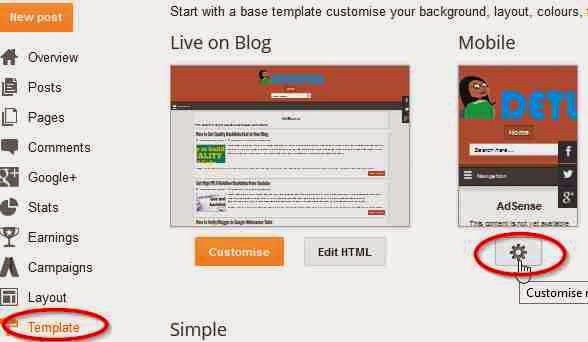
- From your blogger dashboard,
- Goto Template.
- Click on the gear mobile settings icon
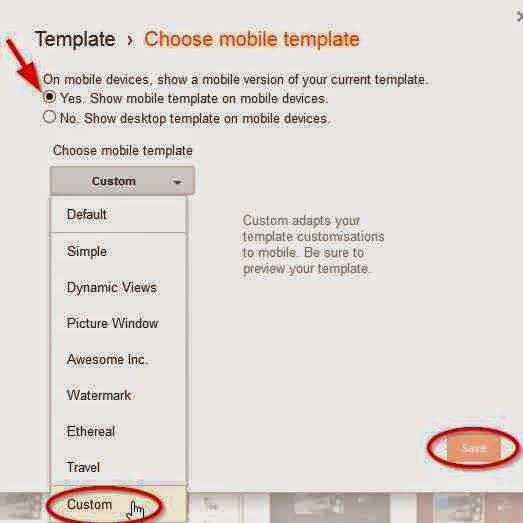
- Select the button option, Yes show mobile template on mobile devices
- From the drop down menu, choose the option custom
- Click on Save to enable your changes.
Step 2
- Next, Still in your template
- Click on Edit HTML
- Using Ctrl+F keys, search for the tag </head>
- Copy the code below and paste above </head>
<!--Related Posts Scripts and Styles Start-->
<style>
#related-posts {
float : left;
width : 350px;
margin-top:20px;
margin-left : 5px;
margin-bottom:20px;
font : 11px Verdana;
margin-bottom:10px;
}
#related-posts .widget {
list-style-type : none;
margin : 5px 0 5px 0;
padding : 0;
}
#related-posts .widget h2, #related-posts h2 {
font-size : 20px;
font-weight : normal;
margin : 5px 7px 0;
padding : 0 0 5px;
}
#related-posts a {
text-decoration : none;
}
#related-posts a:hover {
text-decoration : none;
}
#related-posts ul {
border : medium none;
margin : 10px;
padding : 0;
}
#related-posts ul li {
display : block;
background : url("https://blogger.googleusercontent.com/img/b/R29vZ2xl/AVvXsEg_rJsGTn3oSMisqJfpwoKyKwMUQJuFyBKNrNiHB69R38HrlwyR_ZAgwbRSF4yq_YSyII4Rp25f0ny3x1EPF5eS4x2iLWHcScqOoUN1A-hoHyFKehHnA0OkznIrlHexIOKtjTPiZBMS8T0/s200/greentickbullet.png") no-repeat 0 0;
margin : 0;
padding-top : 0;
padding-right : 0;
padding-bottom : 1px;
padding-left : 21px;
margin-bottom : 5px;
line-height : 2em;
border-bottom:1px dotted #cccccc;
}
</style>
<script type=text/javascript>
//<![CDATA[
var relatedTitles = new Array();
var relatedTitlesNum = 0;
var relatedUrls = new Array();
function related_results_labels(json) {
for (var i = 0; i < json.feed.entry.length; i++) {
var entry = json.feed.entry[i];
relatedTitles[relatedTitlesNum] = entry.title.$t;
for (var k = 0; k < entry.link.length; k++) {
if (entry.link[k].rel == alternate) {
relatedUrls[relatedTitlesNum] = entry.link[k].href;
relatedTitlesNum++;
break;
}
}
}
}
function removeRelatedDuplicates() {
var tmp = new Array(0);
var tmp2 = new Array(0);
for(var i = 0; i < relatedUrls.length; i++) {
if(!contains(tmp, relatedUrls[i])) {
tmp.length += 1;
tmp[tmp.length - 1] = relatedUrls[i];
tmp2.length += 1;
tmp2[tmp2.length - 1] = relatedTitles[i];
}
}
relatedTitles = tmp2;
relatedUrls = tmp;
}
function contains(a, e) {
for(var j = 0; j < a.length; j++) if (a[j]==e) return true;
return false;
}
function printRelatedLabels() {
var r = Math.floor((relatedTitles.length - 1) * Math.random());
var i = 0;
document.write(<ul>);
while (i < relatedTitles.length && i < 20) {
document.write(<li><a href=" + relatedUrls[r] + "> + relatedTitles[r] + </a></li>);
if (r < relatedTitles.length - 1) {
r++;
} else {
r = 0;
}
i++;
}
document.write(</ul>);
document.write(<a href="http://www.techlass.com/2015/04/add-related-post-widget-in-blogger-mobile-version.html " target="_blank" rel="dofollow"><font size="1" color="black">[Get Related Posts Widget]</font></a>);
}
//]]>
</script>
<!--Related Posts Scripts and Styles End-->
Step 3
- In your template, Search for
<div class=post-footer-line post-footer-line-1>
OR SEARCH FOR
<p class=post-footer-line post-footer-line-1>
- Copy the code below and paste below any of the lines of code above which you could find in your template.
<!-- Related Posts with Thumbnails Code Start-->
<b:if cond=data:blog.pageType == "item">
<div id=related-posts>
<font face=Arial size=3><b>Related Posts: </b></font><font color=#FFFFFF><b:loop values=data:post.labels var=label><data:label.name/><b:if cond=data:label.isLast != "true">,</b:if><b:if cond=data:blog.pageType == "item">
<script expr:src="/feeds/posts/default/-/" + data:label.name + "?alt=json-in-script&callback=related_results_labels&max-results=5" type=text/javascript/></b:if></b:loop> </font>
<script type=text/javascript> removeRelatedDuplicates(); printRelatedLabels();
</script>
</div>
</b:if>
<!-- Related Posts with Thumbnails Code End-->
Update:06/09/2015 Save your template without including this last step step 4.
Step 4
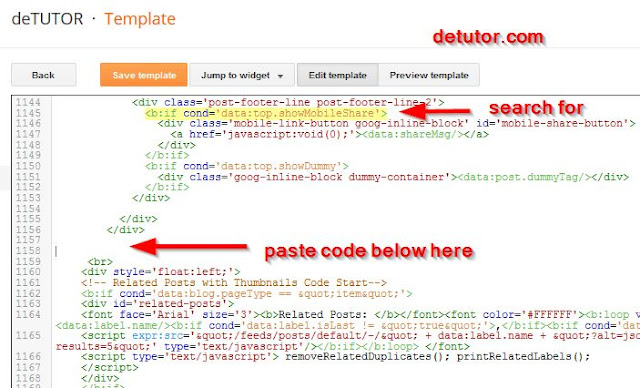
- Still in your template, use CTRL+ F keys to search for this line of code below
<b:if cond=data:top.showMobileShare>
- Below the line of code above, scroll down and search for the fourth </div>
- Copy the code below and paste below the fourth </div> as shown in the image below
<br>
<div style=float:left;>
<!-- Related Posts with Thumbnails Code Start-->
<b:if cond=data:blog.pageType == "item">
<div id=related-posts>
<font face=Arial size=3><b>Related Posts: </b></font><font color=#FFFFFF><b:loop values=data:post.labels var=label><data:label.name/><b:if cond=data:label.isLast != "true">,</b:if><b:if cond=data:blog.pageType == "item">
<script expr:src="/feeds/posts/default/-/" + data:label.name + "?alt=json-in-script&callback=related_results_labels&max-results=5" type=text/javascript/></b:if></b:loop> </font>
<script type=text/javascript> removeRelatedDuplicates(); printRelatedLabels();
</script>
</div>
</b:if>
<!-- Related Posts with Thumbnails Code End-->
</div></br>
- Save your template.
Add Stylish Custom Search Box To Blogger
Following the steps above, the related post widget without thumbnails should show up in the mobile and desktop version of your blog. If it doesnt, its probably because youve not added labels in your blog posts.
Go to link download

Wednesday, October 19, 2016
6 Firefox Add ons Every SEO Link Builder Should Have
6 Firefox Add ons Every SEO Link Builder Should Have
Some of the best SEO firefox add-ons are given in this post. The features provided by each of these firefox add-ons are numerous, allowing you to see how any website you visit is optimized in terms of SEO. With the results displayed on these add-ons like the number of backlinks, Google PageRank and Alexa ranking of all the sites you visit, you can build high pr backlinks from these sites and also monitor your competitors backlinks to get backlinks from the same sites theyd used.
SEO Tools - Firefox Addons for Search Engine Optimization
1. SEOquake add-on:
SEOquake firefox extension add-on has several features to help you with SEO. The Pagerank, Backlinks, Google Index, archive age, Del.icio.us mentions are some of its displayed features. For the backlinks feature on this addon, it shows you the number of external links to any page searched on google and the sources of these backlinks and if theyre dofollow or nofollow. To rank your post well in search results, you can use this to your advantage by checking links to your competitors post and their sources. You can download and install SEOquake firefox add-on here2.
SEO For Firefox:
This is another firefox SEO add-on which displays information of a page on google such as :- PR: (Google PageRank) an estimated measure of global link authority
- Age: Age pulled from Archive.org, shows the first time a page was indexed by Archive.orgs spider.
- Links: Shows a rough estimate of the total number of links pointing at a domain
- .edu Link: Shows a rough estimate of the total number of .edu links pointing at a domain
- .edu Page Link: Shows a rough estimate of the total number of .edu links pointing at a specific page
- .gov Link: Shows a rough estimate of the total number of .gov links pointing at a domain
- Page Links: (Yahoo! link) shows a rough estimate of the total number of links pointing at a page..
Also Read: Free Online Backlink Checker Tools
High PR Dofollow Commentluv Enabled Blogs
All In One SEO Pack Plugin 2015 For Blogger
3. Page Rank For Firefox:
This add-on dispalys a little box in your toolbar showing the PageRank of the page your are currently on and also the page rank of all open tabs. You get to know the quality of the site you have visited. You can build backlinks from these sites either by guest posting, registering and including your URL or commenting. Download page rank for firefox adds-on here.

4. Yslow Firefox add-on:
YSlow analyzes web pages speed and suggests ways to improve their performance based on a set of rules for high performance web pages. This will help you optimise the speed of your website. Download Yslow from here. You will also need to install firebug for this add-on to work properly. Download Firebug from here.

5. Search Status:
This firefox add-on highlights nofollow links, allows you to access any page metatags with one click, view the link report and robots.txt info. For every site you visit SearchStatus lets you view its Google PageRank, Google Category, Alexa popularity ranking, Compete.com ranking, SEOmoz Linkscape mozRank, Alexa related links and backward links from Google, Yahoo! and MSN. You can download search status add-on from here.

Also Read: Top 60 High PR DoFollow Directory Submission Sites 2015
High PR Dofollow Social Bookmarking Sites 2015
6. Majestic Backlink Analyzer:
This extension from Majestic gives you a really fast way to see the strength of any page based on its backlink information. Information provided on this free add-on includes: Link Profile charts, Link counts at the URL, Subdomains and Root level and the two Flow Metrics scores from 0-100 for pages you visit (speed limits apply.)
Download majestic backlink analyzer from here.

To optimize your blog and find link building targets , another SEO technique you can implement is the use of any of the SEO Firefox add-ons/extensions listed above.
Go to link download
Friday, September 9, 2016
How to Add CommentLuv Plugin On Blogger Blogs
How to Add CommentLuv Plugin On Blogger Blogs
With this tip below on How to Add CommentLuv Plugin On Blogger Blogs, you can also implement the commentluv plugin as seen in WordPress blogs on blogger. Commentluv is a plugin that allows commentators to leave a link of their most recent post or any blog post on blogs they comment on which have installed the plugin.
Some also have the feature of retaining the twitter username of the commentators. The commentluv plugin to site owners and commentators has lots of advantages. To the former, it can bring about an increase in the blog/sites traffic and comments. Since the commentators get rewarded with a backlink to their blogs and others visiting their site from the link, this encourages them to drop comments, which in turn increases user engagement on that site/blog. Installing the commentluv plugin in blogger would mean replacing the default commenting system on blogger, to do this, heres how to add commentLuv plugin for blogger blogs.
Also Read: How to Disable Right Click On Blogger - Stop Copy Paste
How to Make Blogger Widgets/Gadgets Sticky(Float)
How to Show Post Title Before Blog Title In Search Results

Also Read : How to Add HTML Parse Tool in Blogger
How To Centralise Blogger Title And Description
Some also have the feature of retaining the twitter username of the commentators. The commentluv plugin to site owners and commentators has lots of advantages. To the former, it can bring about an increase in the blog/sites traffic and comments. Since the commentators get rewarded with a backlink to their blogs and others visiting their site from the link, this encourages them to drop comments, which in turn increases user engagement on that site/blog. Installing the commentluv plugin in blogger would mean replacing the default commenting system on blogger, to do this, heres how to add commentLuv plugin for blogger blogs.
Also Read: How to Disable Right Click On Blogger - Stop Copy Paste
How to Make Blogger Widgets/Gadgets Sticky(Float)
How to Show Post Title Before Blog Title In Search Results
How to Integrate CommentLuv With Blogger Blogs
- Visit IntenseDebate with this link
- Signup for an account.
- Ensure you tick the radio button "i want to install intenseDebate on my blog or website" before clicking the sign up button.
- Verify your email address by clicking on the link that will be sent to the email which you signed up with.
- Log into your account on IntenseDebate.
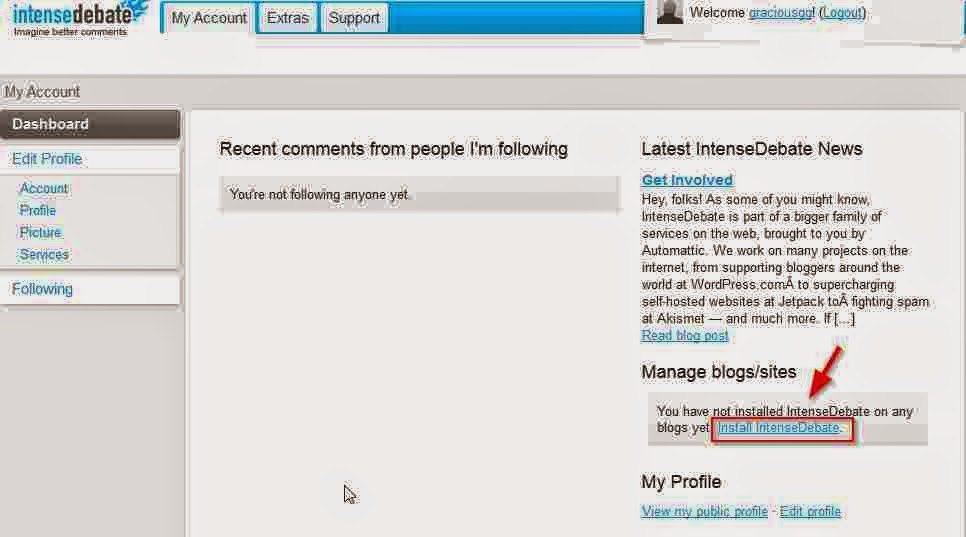
- On the site, Select install intenseDebate.
- Select your blogging platform as blogger
- You can also choose if the commentluv plugin should be shown on all existing posts or on new posts.
- Next, From your blogger dashboard, navigate to template
- Download a copy on your template.
- Return to IntenseDebate site, upload your template where its specified.
- In the code that is generated, it contains your template codes and the commentluv plugin code. Copy the entire code to a notepad or any other text editor.
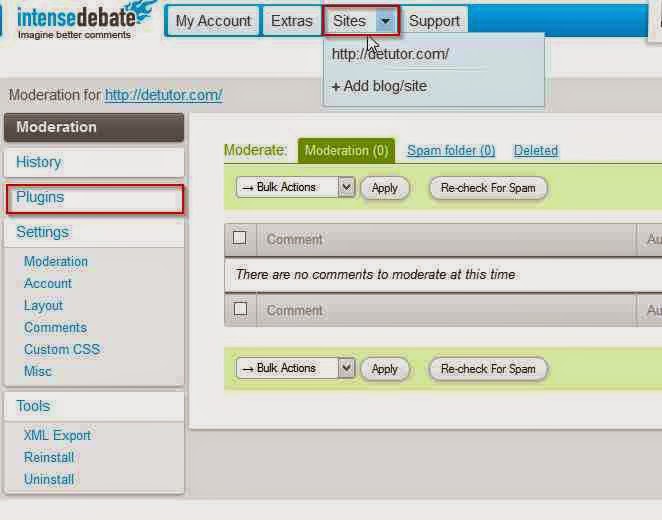
- Click on the Sites tab
- Select plugins
- In the list of plugins that displayed, activate commentluv.
Also Read : How to Add HTML Parse Tool in Blogger
How To Centralise Blogger Title And Description
- Return to your blogger template,
- Click on edit html,
- Replace the entire code in your template, with the code you copied from IntenseDebate site.
- Save your template, then view your blog to note the changes
Go to link download
Saturday, September 3, 2016
Add Stylish Custom Search Box to Blogger
Add Stylish Custom Search Box to Blogger
In this post, steps on how to add customized CSS3 search box to blogger blogs are given. With a custom search box in your blog, your readers both the new and returning ones can easily search for and find anything on your blog. For blogs that have hundreds of posts, it might be very difficult for readers to find a particular post without the search box, even if they go through the archive. Also, the analytics from searches performed on your blog lets you know what your readers really want. Other than the default blogger search box which has a dull design, you can add a customized one which is stylish and with a better design. Help your readers find what they need on your blog quickly by adding one of the styles below for the customized search box gadget for blogger.
jQuery Background Slideshow Plugin For Blogger
Recommended Post Slider Widget For Blogger With Share Buttons

Style 2

Style 3

Style 4
 Read more »
How to Add Stylish Custom Search Box To Blogger
- From your blogger dashboard,
- Goto Layout.
- Select HTML/Javascript.
- Copy any of the codes below for your preferred style and paste in the text field .
jQuery Background Slideshow Plugin For Blogger
Recommended Post Slider Widget For Blogger With Share Buttons
<style>
#searchbox {
 background: url(http://4.bp.blogspot.com/-u0fEq-zSTYI/VD1gGDLy3aI/AAAAAAAAAhw/im3bcQd5wBM/s1600/search-box.png) no-repeat;
 height: 27px;
 width: 202px;
}

input:focus::-webkit-input-placeholder {
 color: transparent;
}

input:focus:-moz-placeholder {
 color: transparent;
}

input:focus::-moz-placeholder {
 color: transparent;
}

#searchbox input {
 outline: none;
}

#searchbox input[type="text"] {
 background: transparent;
 margin: 0px 0px 0px 12px;
 padding: 5px 0px 5px 0px;
 border-width: 0px;
 font-family: "Arial Narrow", Arial, sans-serif;
 font-size: 12px;
 font-style: italic;
 width: 77%;
 color: #828282;
 display: inline-table;
 vertical-align: top;
}

#button-submit {
 background: url(http://2.bp.blogspot.com/-4OxjMRukhCM/VD1gBscpzII/AAAAAAAAAhk/TUxMSv7bCzA/s1600/search-button.png) no-repeat;
 border-width: 0px;
 cursor: pointer;
 width: 30px;
 height: 25px;
}

#button-submit:hover {
 background: url(http://4.bp.blogspot.com/-GgNBTS_3FEA/VD1gBgm7RFI/AAAAAAAAAhg/flg6VijzW8E/s1600/search-button-hover.png) no-repeat;
}

#button-submit::-moz-focus-inner {
 border: 0;
}
</style>

<form id="searchbox" method="get" action="/search" autocomplete="off">
<input name="q" type="text" size="15" placeholder="search..." />
<input id="button-submit" type="submit" value="" />
</form>
Style 2
<style>
#searchbox {
 background: url(http://2.bp.blogspot.com/-Un3z-hkw1XA/VD0V9GO8zrI/AAAAAAAAAf0/ww_5VsvWayY/s1600/search-box1.png) no-repeat;
 width: 250px;
 height: 65px;
}

input:focus::-webkit-input-placeholder {
color: transparent;
}

input:focus:-moz-placeholder {
color: transparent;
}

input:focus::-moz-placeholder {
color: transparent;
}

#searchbox input {
 outline: none;
}

#searchbox input[type="text"] {
 background: transparent;
 padding: 5px 0px 5px 20px;
 margin: 10px 15px 0px 0px;
 border-width: 0px;
 font-family: "Brush Script MT", cursive;
 font-size: 12px;
 color: #595959;
 width: 65%;
 font-weight: bold;
 display: inline-table;
 vertical-align: top;
}

#button-submit {
 background: url(http://1.bp.blogspot.com/-zyJC7B-dSaU/VDv8-68fNJI/AAAAAAAAAe0/pkUajFr2kcQ/s1600/magnifier.png) no-repeat;
 border-width: 0px;
 cursor: pointer;
 margin-top: 10px;
 width: 19px;
 height: 25px;
}

#button-submit:hover {
 background: url(http://1.bp.blogspot.com/-pIwlQno5_6U/VDxR9OdzvYI/AAAAAAAAAfM/YDBC2P705tc/s1600/magnifier-hover.png) no-repeat;
}

#button-submit:active {
 background: url(http://1.bp.blogspot.com/-pIwlQno5_6U/VDxR9OdzvYI/AAAAAAAAAfM/YDBC2P705tc/s1600/magnifier-hover.png) no-repeat;
 outline: none;
}

#button-submit::-moz-focus-inner {
 border: 0;
}
</style>

<form id="searchbox" method="get" action="/search" autocomplete="off">
 <input class="textarea" name="q" type="text" size="15" placeholder="Search here..." />
 <input id="button-submit" type="submit" value="" />
</form>
Style 3
<style>
#searchbox {
width: 280px;
background: url(http://1.bp.blogspot.com/-dwLNyhnHlTg/VEQZwf9drLI/AAAAAAAAAlg/rbd0HN4EZrY/s1600/search-box.png) no-repeat;
}

#searchbox input {
 outline: none;
}

input:focus::-webkit-input-placeholder {
 color: transparent;
}

input:focus:-moz-placeholder {
 color: transparent;
}

input:focus::-moz-placeholder {
 color: transparent;
}
#searchbox input[type="text"] {
background: transparent;
border: 0px;
font-family: "Avant Garde", Avantgarde, "Century Gothic", CenturyGothic, "AppleGothic", sans-serif;
font-size: 14px;
 color: #f2f2f2 !important;
 padding: 10px 35px 10px 20px;
 width: 220px;
}
#searchbox input[type="text"]:focus {
color: #fff;
}

#button-submit{
background: url(http://4.bp.blogspot.com/-4MYBYE0i0Xk/VEQYlljvriI/AAAAAAAAAlQ/_TRkRG5EX1c/s1600/search-icon.png) no-repeat;
margin-left: -40px;
border-width: 0px;
width: 40px;
height: 50px;
}

#button-submit:hover {
background: url(http://4.bp.blogspot.com/-6S4K8eHPM-c/VEQdf7l84GI/AAAAAAAAAls/j7_kGSpkIfg/s1600/search-icon-hover.png);
}
</style>

<form id="searchbox" method="get" action="/search" autocomplete="off">
<input name="q" type="text" size="15" placeholder="Enter keywords here..." />
<input id="button-submit" type="submit" value=" "/>
</form>
Style 4
<style>
#searchbox {
width: 240px;
}
#searchbox input {
outline: none;
}
input:focus::-webkit-input-placeholder {
color: transparent;
}
input:focus:-moz-placeholder {
color: transparent;
}
input:focus::-moz-placeholder {
color: transparent;
}
#searchbox input[type="text"] {
background: url(http://2.bp.blogspot.com/-xpzxYc77ack/VDpdOE5tzMI/AAAAAAAAAeQ/TyXhIfEIUy4/s1600/search-dark.png) no-repeat 10px 13px #f2f2f2;
border: 2px solid #f2f2f2;
font: bold 12px Arial,Helvetica,Sans-serif;
color: #6A6F75;
width: 160px;
padding: 14px 17px 12px 30px;
-webkit-border-radius: 5px 0px 0px 5px;
-moz-border-radius: 5px 0px 0px 5px;
border-radius: 5px 0px 0px 5px;
text-shadow: 0 2px 3px #fff;
-webkit-transition: all 0.7s ease 0s;
-moz-transition: all 0.7s ease 0s;
-o-transition: all 0.7s ease 0s;
transition: all 0.7s ease 0s;
}
#searchbox input[type="text"]:focus {
background: #f7f7f7;
border: 2px solid #f7f7f7;
width: 200px;
padding-left: 10px;
}
#button-submit{
background: url(http://4.bp.blogspot.com/-slkXXLUcxqg/VEQI-sJKfZI/AAAAAAAAAlA/9UtEyStfDHw/s1600/slider-arrow-right.png) no-repeat;
margin-left: -40px;
border-width: 0px;
width: 43px;
height: 45px;
}
</style>
<form id="searchbox" method="get" action="/search" autocomplete="off">
<input name="q" type="text" size=<Go to link download
Friday, August 19, 2016
Add Flying Letters Below Mouse Pointer Animation
Add Flying Letters Below Mouse Pointer Animation
Heres how to add flying letters animation below the mouse pointer. With the Flying letters below the mouse, your blog gets a different look. These letters start flying when you move your mouse over your blog or website. Want throw in one extra design? then try this out.
Also Read: Sliding Recent Posts Widget For Blogger
Add Stylish Custom Search Box To Blogger
Recommended Post Slide Out Widget With Share Buttons
Link to This Post Widget For Blogger
Also Read: Sliding Recent Posts Widget For Blogger
Add Stylish Custom Search Box To Blogger
Recommended Post Slide Out Widget With Share Buttons
How to Add Flying Letters Below Mouse Pointer Animation
- From your Blogger dashboard,
- Goto Template
- Click on Edit HTML
- Click inside your template and search for this tag </body>
- Copy this code and paste above the tag
<script type="text/javascript">
var text=' ENTER YOUR TEXT HERE ';
</script>
<script src="http://netoopscodes.googlecode.com/svn/branches/Js%20files/mousetail.js" type="text/javascript">
</script>
- Replace the text in the code ENTER YOUR TEXT HERE with your desired text that is to be shown below the mouse pointer
- Save your template.
Link to This Post Widget For Blogger
Go to link download
Thursday, August 18, 2016
Add Floating Social Share Buttons Below Blogger Post Title
Add Floating Social Share Buttons Below Blogger Post Title
Steps on How to Add Floating Social Share Buttons Below Blogger Post Title are given in this post. Including social media share buttons can help in boosting a blogs traffic because the post goes viral on these social bookmarking sites. Since this social share widget is a floating/sticky one, where its visible to all your readers as they scroll up and down, it makes it easier for them to share your blog post. Included on this social share widget are Facebook, Twitter, Pinterest and Google+ buttons. Follow the steps below to add one to your blog.
Also Read: Social Follow and Subscription Widget For Blogger
Facebook Popup Like Box With Timer For Blogger
Sliding Recent Posts Widget For Blogger
For the last code below:
To place the floating share buttons below the post title,
Also Read: Social Follow and Subscription Widget For Blogger
Facebook Popup Like Box With Timer For Blogger
Sliding Recent Posts Widget For Blogger
How to Add Floating Social Share Buttons Below Blogger Post Title
- Click on Edit HTML
- With ctrl+F keys, search for this tag </head>
- Copy the code below and paste above </head>
<script src=http://ajax.googleapis.com/ajax/libs/jquery/1.7.1/jquery.min.js type=text/javascript/>

<script type=text/javascript>
//<![CDATA[
$(function() {
var $movesbuttons = $("#floating-social-buttons"),
$window = $(window),
offset = $movesbuttons.offset();
$window.scroll(function() {
if ($window.scrollTop() > offset.top) {
$movesbuttons.css({position : fixed, width : 550px, top : 0px});
} else {
$movesbuttons.css({position : absolute, top : auto});
}
});
});
//]]>
</script>
- Next, Search for ]]></b:skin> in your template.
- Copy this code below and paste above ]]></b:skin>
#floating-social-buttons {
padding: 6px 0px 12px;
position: absolute;
background: #F6F6F6;
border-bottom: 1px solid #DEDEDE;
width: 550px;
height: 18px;
z-index: 99;
}
.floating-social-buttons {
margin-left: 5px !important;
}
.floating-social-buttons li {
float: left;
margin-left: 5px;
list-style:none;
}
For the last code below:
To place the floating share buttons below the post title,
- Search for <div class=post-header>
- Copy the code and paste below the second <div class=post-header> you find in your template.
- Search for <div class=post-header>
- Copy the code and paste below the second <div class=post-footer> .
<b:if cond=data:blog.pageType == "item">
<div style=padding:5px 0 35px 0;clear:both;>
<div id=floating-social-buttons>
<ul class=floating-social-buttons>
<li><iframe allowTransparency=true expr:src="http://www.facebook.com/plugins/like.php?href=" + data:post.url+ "&layout=button_count&show_faces=false&width=100&height=25&action=like&font=tahoma&colorscheme=light" frameborder=0 scrolling=no style=border:none; overflow:hidden; width:100px; height:25px;/></li>
<li><a class=twitter-share-button data-lang=en href=https://twitter.com/share>Tweet</a><script src=//platform.twitter.com/widgets.js type=text/javascript/></li>
<li><script src=http://apis.google.com/js/plusone.js type=text/javascript/><g:plusone expr:href=data:post.url size=medium/></li>
<li><a class=pin-it-button count-layout=horizontal expr:href="http://pinterest.com/pin/create/button/?url=" + data:post.url + "&media=" + data:post.thumbnailUrl + "&description=" + data:post.snippet style=margin:0 10px 5px 0;>Pin It</a> <script src=http://assets.pinterest.com/js/pinit.js type=text/javascript/></li>
</ul>
</div>
</div>
</b:if>
- Save your template.
Go to link download
Subscribe to:
Posts (Atom)