Showing posts with label webmaster. Show all posts
Showing posts with label webmaster. Show all posts
Friday, September 30, 2016
How to Submit Your Blog to Bing Webmaster Tools
How to Submit Your Blog to Bing Webmaster Tools
Submit Site to Search Engines
A post on how to submit your website/sitemap to Bing Webmaster Tools. After carrying out on page and off page search engine optimization techniques, another step that is required to promote your site is, submission of its pages to search engines for organic traffic. Other than popular sources of traffic like social networks, adverts, forums etc, the amount of free targeted traffic from search engines to a site makes it necessary for one to give more preference to them and allow them to crawl and index their sites pages.Also Read: How to Use Google Webmaster Tools For SEO
Remove Old or Deleted Information From Google Index
Google SEO Ranking Factors
Previously, i shared a post on how to submit and verify blogger blogs in Google webmaster tools, and here, youll get to know how you can use the search engine Bing to get traffic to your site. Ranking high on Bings search result pages is easier when compared with Google, hence, another source of getting meaningful traffic to your site. Before your site can be indexed by Bing, you have to submit it to Bing Webmaster tools. This will include your sites pages in its search results.
How to Submit Website to Bing
To make sure your content gets seen in Bing search results, follow the steps below.
- Goto Bing Webmaster tools
- Sign in using your Microsoft Account (If you dont have one, follow this link to create)
- Enter you sites URL i the field specified.
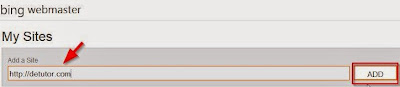
- Click on Add
- On the new page, include your sitemap URL
- Enter your sites URL in the space provided,
- Click on Generate
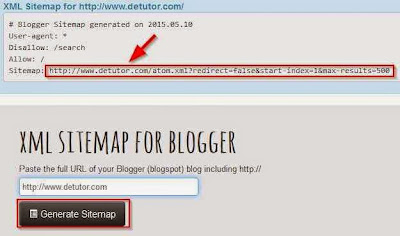
- Copy the generated URL for the sitemap and paste on the required field on Bing
- Click on Add.
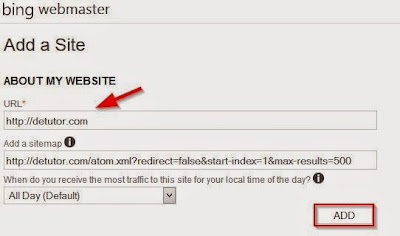
Next, youll verify youre the owner of the site youre submitting to Bing. To verify website on bing for blogger blogs, follow the steps below.
- Use the option 2 which is the meta tag method
- Copy the meta tag.
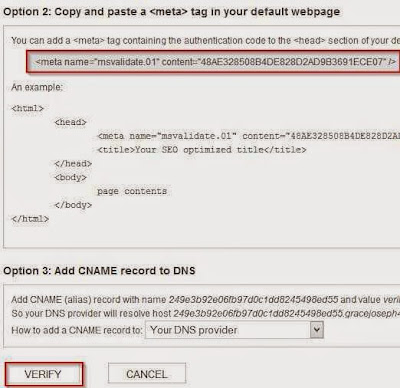
- Goto your Blogger template
- Click on Edit HTML
- Using CTRL+F keys, search for the tag <head>
- Paste the validation code you copied on Bing below <head>
- Save your template.
- Return to Bing
- Scroll down and click on Verify
Also Read: Optimize H1,H2 and H3 Heading Tags In Blogger
How to Make Blogger Template SEO Friendly
With the steps as listed above on how to submit your blog to Bing Webmaster Tools you site will start showing upin Bing search results, thereby improving your online visibility.
How to Make Blogger Template SEO Friendly
With the steps as listed above on how to submit your blog to Bing Webmaster Tools you site will start showing upin Bing search results, thereby improving your online visibility.
Go to link download

Sunday, September 18, 2016
How to Verify Blogger In Google Webmaster Tools
How to Verify Blogger In Google Webmaster Tools
Guidelines on how to verify blogger In Google Webmaster Tools are given in this post. Google Webmaster Tools enables bloggers to view the performance of their site on google. This inturn helps them in knowing what pages to optimize properly on the website for higher page rankings. Although new blogger blogs are automatically verified in Webmaster Tools, the older or existing ones require manual verification which can be done using the meta tag method. Looking for how how to verify your blogger blog In Google Webmaster Tools? Heres how to do it.
Also Read: Showing Post Title Before Blog Title In Search Results
Automatically Open all External Links in a New Window In Blogger
Automatically Add Nofollow Attribute to All External Links In Blogger
For existing websites on Google Webmaster Tools,

Top 60 High PR DoFollow Directory Submission Sites 2015
On clicking on verify, your blogger account/website has been verified. You can now see how your site performs on Google Webmaster Tools using features like search queries, links to your site, page speed insights etc.
Also Read: Showing Post Title Before Blog Title In Search Results
Automatically Open all External Links in a New Window In Blogger
Automatically Add Nofollow Attribute to All External Links In Blogger
How to Verify Blogger in Google Webmaster Tools
Here, the meta tag method will be used since it is the easiest way to add your Blogger blog to Google’s Webmaster Tools.- Goto Google webmaster tools, Login using your Gmail account details.
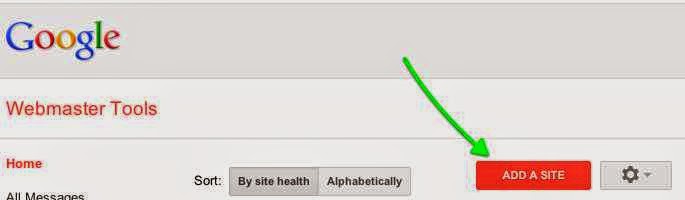
- Click on Add site, then enter your websites URL in the space provided
For existing websites on Google Webmaster Tools,
- Click on Verify this site
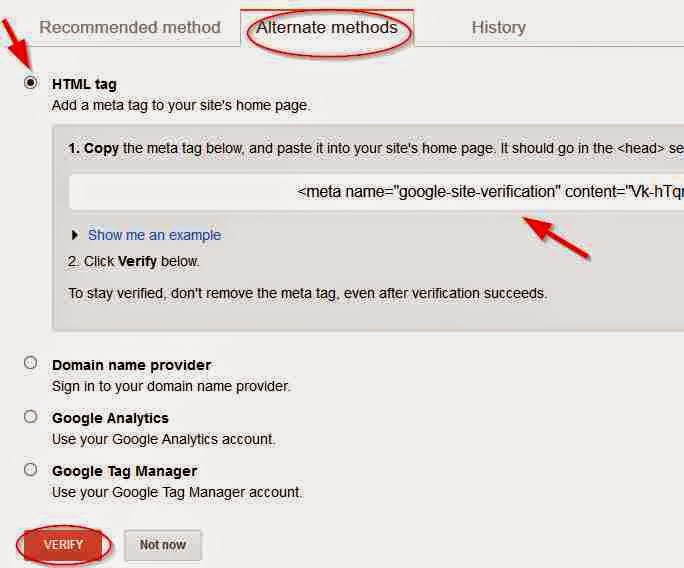
- On the new page, click on Alternate methods tab
- Select HTML tag button
- A google webmaster verification meta tag code will be generated, youre required to copy this code into your template. Follow the steps below to do this.
How to Add Google Webmaster Verification Code in Blogger Template
- From your Blogger dashboard
- Goto Template
- Click on Edit HTML
- Click inside your template, the use Ctrl + F keys and search for <head>
- Copy the the verification HTML code that was generated in Google Webmaster Tools and paste below <head>
- Save your template.
- Return to Google webmaster tools, then click on verify.
Top 60 High PR DoFollow Directory Submission Sites 2015
On clicking on verify, your blogger account/website has been verified. You can now see how your site performs on Google Webmaster Tools using features like search queries, links to your site, page speed insights etc.
Go to link download
Sunday, September 4, 2016
Fix Duplicate Meta Description Error In Google Webmaster Tools
Fix Duplicate Meta Description Error In Google Webmaster Tools
How to Remove Duplicate Meta Description Error in Google Webmaster tool
Google Webmaster tools gives webmaster knowledge about their sites performance in search engines. Here, you can note the progress of your site and how to improve its SEO. Duplicate meta description error in Google webmaster tool exist when each posts on your blog does not have a meta search description. By telling search engines what the post is about using a search description, they can rank your pages in their result pages. Therefore, it is required that the search description is unique for each of the pages on your blog. Also, Duplicate meta description error can be brought about when you do not set your archive and labels pages as noindex.
Also Read: Remove Old or Deleted Information From Google Index
How to Use Google Webmaster Tools For SEO
How to Verify Blogger In Google Webmaster Tools
To identify duplicate meta description error in your blogger blog,
How to Use Google Webmaster Tools For SEO
How to Verify Blogger In Google Webmaster Tools
To identify duplicate meta description error in your blogger blog,
- Goto Google webmaster tools
- Select the site which you want to chect for the errors.
- Click on the section Search Appearance
- Select HTML Improvements
Here, youll see the number of duplicate descriptions and title tags on your blog.
Remove Duplicate Meta Descriptions Blogger
Some ways in which you can remove duplicate meta description error from Google webmaster tool are:- Editing Blogger Template
- Custom Robot.txt file in Blogger
- Custom Robot Header Tags
Editing Blogger Template
To remove duplicate meta description error using your blogger template, follow the steps below
- From your Blogger dashboard,
- Go to Template
- Click on Edit HTML
- Using CTRL+F keys, search for the entire code below
<b:if cond=data:blog.metaDescription != "">
<meta expr_content=data:blog.metaDescription name=description/>
</b:if>
- Replace the code with the one below
<b:if cond=data:blog.url != data:blog.homepageUrl>
<b:if cond=data:blog.pageType != "item">
<b:if cond=data:blog.metaDescription != "">
<meta expr_content=data:blog.metaDescription name=description/>
</b:if>
</b:if>
</b:if>

User-agent: Mediapartners-Google*
Allow: /
User-agent: Googlebot-Image
Allow: /
User-agent: Adsbot-Google
Allow: /
User-agent: Googlebot-Mobile
Allow: /
User-agent: Twitterbot
Allow: /
User-agent: *
Disallow: /search
Disallow: /cgi-bin/
Allow: /
User-agent: *
Disallow: /*.html
Allow: /*.html$
Sitemap: http://www.techlass.com//atom.xml?redirect=false&start-index=1&max-results=500
Also Read: Optimize H1,H2 and H3 Heading Tags In Blogger
- Save the template
Custom Robot Header Tags
- From your blogger dashboard,
- Goto settings
- Click on Search Preferences
- In the section Custom robots header tags, click on Edit
- Select the radio button Yes
- Tick the fields as with the image below
Custom Robot.txt
- From your blogger dashboard,
- Goto Settings
- Click on Search Preferences
- In Customs Robots.txt section
- Click on Edit
- Select Yes
- In the text field, copy the code below and paste
User-agent: Mediapartners-Google*
Allow: /
User-agent: Googlebot-Image
Allow: /
User-agent: Adsbot-Google
Allow: /
User-agent: Googlebot-Mobile
Allow: /
User-agent: Twitterbot
Allow: /
User-agent: *
Disallow: /search
Disallow: /cgi-bin/
Allow: /
User-agent: *
Disallow: /*.html
Allow: /*.html$
Sitemap: http://www.techlass.com//atom.xml?redirect=false&start-index=1&max-results=500
- Replace the higlighted URL with your sites URL.
- Click on Save changes.
Also Read: Optimize H1,H2 and H3 Heading Tags In Blogger
How to Make Blogger Template SEO Friendly
Go to link download
Saturday, August 20, 2016
How to Use Google Webmaster Tools For SEO
How to Use Google Webmaster Tools For SEO
What Is Google Webmaster Tools?
This post centers on how to use Google Webmaster Tools For SEO. This is a set of tools provided for webmasters to optimize their blogs or websites for Google search engine. Since Google is the worlds largest search engine and most of the free traffic webmasters are likely to get comes from it, it makes sense why one should give their website a proper SEO structure. With Google webmaster tools, you get to see your sites performance within a specified period of time, most important pages and indexed pages on your website, list of external and internal links to your site. Also you can adjust the crawl rate at which Google bot indexes your site, and generally ways on how you can improve your website with the site metrics provided.
To use Google Webmaster Tools For SEO, you have to verify your website on it. For blogger blogs, you can see this post on how to verify blogger in Google webmaster tools. For other blogging platforms, you can visit Google webmaster tools, add your site, then verify using either of the following:
- HTML Meta tag
- HTML file upload
- Google Analytics
- Google tag Manager and,
- Domain name Provider.
Verification of your website proves youre the owner and enables you to gain access to all of the features listed above and many more.
Google Webmaster Tools For Seo
Several tools which webmasters can use in analyzing their website for better rankings can be found in Google webmaster tools, In this post, a list of the basic ones are given. These include search queries, links to your site, index status, content keywods, crawl errors, crawl stats, fetch as Google, Sitemaps, robots.txt tester and page speed insights.
Search Queries:
A review of your sites popularity is shown using a graphical representation. You can set the date range which lets you know if your sites performance is improving or declining in Google search results. Things you should watch out for are the impressions, number of clicks for that date range. Also, in the search queries tab the keywords used to find a post on your blog is shown with the impressions it got, number of clicks and its average position in search results.
Keywords- With the keywords, you get to know the search strings that was inputted before a visitor accessed your website. With this, you can edit existing posts on your blog that matches that keyword in order to increase their ranking.
Impressions : This shows the number of times your post came up in search engines and the possibility of a user clicking on it. A post with a higher impression should be optimized properly by giving it a better description, and catchy title etc.
Number of Clicks: This gives the actual number of users who clicked on the post to visit your site. If a post has a high impression but with very low clicks, you need to spend time to make the post SEO friendly. By using header tags to categorise the post, relevant keywords in post title and description, increasing the length of the actual post, this can do the trick.
Average Position: When your post comes up in search engines, it falls into different positions for different users who search for it on Google. If for user A the post was on position 3 and for user B , the post was on position 5, then the average positon for that post will be 4, since 3 plus 5 divided by 2 is 4. If the post has an average position above 9, then its likely on page 2 on Google which means less traffic to your blog. The higher the average position, the lower its rank on Google.
What you can do here is to check the impression for that post, if it is high, then you can try and move the post to page 1 on Google. To do this will require backlinks, keyword density in post, keywords in the post title , at the beginning of the post etc. For backlinks, instead of building them to your homepages URL, you can start building them to internal pages on your blog using high PR social bookmarking sites, high PR Gov and Edu Forums, directory submission sites and commenting on dofollow commetluv blogs.
Links to your Site
This shows the number of websites that are linking to pages on your site and the number of internal links on your site. For links to your site, you get to see your most linked content, the URL of the website that is linking to it, an the anchor text used for each link.You can use this as an online backlink checker tool.
Index Status
The index status shows the number of pages on your site that have been indexed by Google, meaning theyre accessible by users on searching for it. To allow Google index the pages on your website, you need to add/submit a sitemap in Google webmaster tools, to do this:- On Google webmaster tools,
- Click on Crawl
- Select Sitemap
- On the top right corner, click on Add/Test Sitemap
- Type Sitemap.xml or type system/feeds/sitemap in the space provided, then click on submit.

You can also create an HTML sitemap page in your blogger blog which can help index the pages on your blog faster and help users navigate easily through your blog.
Fetch as Google
As the name implies, you can use this tool to fetch the content of your homepage or individual pages on your site. An advantage is that the content gets indexed faster instead of waiting for hours or days for Google to crawl and index your blog posts after youve published them.Content Keywords
The primary keywords used on your blog are shown with the level of significance they have. It shows you how how Google sees your site.Crawl Errors
The Crawl errors section shows the errors encountered by Google bot while crawling your site to index its pages. This is usually shown in form of messages on visiting Google Webmaster tools. These errors can arise when theres inability to communicate with the DNS server, robot.txt is not accessible and theres a slow response in server connectivity .
Page Speed Insight
Here, the speed of your website is given out of a possible result of 100. If your page speed is low, it can affect your blogs position in search engines since it takes too much time to load. Another effect itll have is an increase in its bounce rate. Most users on visiting your blog will leave immediately if it takes too much data or is slow. You should keep in mind that the information theyre looking for is also on several blogs who are your competitors. You have to remove unnecessary Ads, gadgets and widgets on your blog. Compressing images, reducing their sizes and minimizing the number of images on pages can help improve you blogs page speed. On Google webmasters tools, youll get other sugestions on how to increase your sites page speed on mobile and desktop devices.
Also Read: Get High PR 9 Dofollow Backlinks From YouTube
With these tools listed above and many others as provided in Google Webmaster tools you can get detailed information about your sites performance and the areas that need modification in order to improve its SEO.
Go to link download
Subscribe to:
Posts (Atom)