Showing posts with label change. Show all posts
Showing posts with label change. Show all posts
Tuesday, November 1, 2016
Samsung Galaxy S3 L710 Sprint Firmware Version 4 4 2 cdma meid repair and change Without Root Guide 100 Worked
Samsung Galaxy S3 L710 Sprint Firmware Version 4 4 2 cdma meid repair and change Without Root Guide 100 Worked
Samsung 4.4.2 L710 meid repair change 100% Worked

As we all know samsung new security all new os you can not write meid older way..
NO ROOT.
NO PATCH.
JUST C3303K CABLE + ANY FTDI BOX.
gcprokey is only tool in market can repair most samsung cdma meid 4.3,4.4.x most versions.
here is sample of L710 MEID change.
Using Version...1.0.0.0005
Selected Port VCP0 = COM3
Selected Model Samsung GSM
Selected Task SAM MEID
SAMSUNG MEID REPAIR STARTED...
Searching Phone Please wait...
Phone Found Wait...
TEST MODE OK..
Model := SPH-L710
UNIQID := CMAF74A19C462AF
Phone MEID := 990003342XXXXX
MSL found can continue..
Autho Pass..
SEED Passed..
Update MEID Ok..
Repairing finish.
All Finish..
!!! Success !!!!
Total Time Take...00:00:30
Selected Port VCP0 = COM3
Selected Model Samsung GSM
Selected Task SAM MEID
SAMSUNG MEID REPAIR STARTED...
Searching Phone Please wait...
Phone Found Wait...
TEST MODE OK..
Model := SPH-L710
UNIQID := CMAF74A19C462AF
Phone MEID := 990003342XXXXX
MSL found can continue..
Autho Pass..
SEED Passed..
Update MEID Ok..
Repairing finish.
All Finish..
!!! Success !!!!
Total Time Take...00:00:30
Just to show meid is really changed i did repair again..
Using Version...1.0.0.0005
Selected Port VCP0 = COM3
Selected Model Samsung CDMA
Selected Task SAM MEID
SAMSUNG MEID REPAIR STARTED...
Searching Phone Please wait...
Phone Found Wait...
TEST MODE OK..
Model := SPH-L710
UNIQID := CMAF74A19C462AF
Phone MEID := A10001XXXXXXX
MSL found can continue..
Autho Pass..
SEED Passed..
Update MEID Ok..
Repairing finish.
All Finish..
!!! Success !!!!
Total Time Take...00:00:32
Selected Port VCP0 = COM3
Selected Model Samsung CDMA
Selected Task SAM MEID
SAMSUNG MEID REPAIR STARTED...
Searching Phone Please wait...
Phone Found Wait...
TEST MODE OK..
Model := SPH-L710
UNIQID := CMAF74A19C462AF
Phone MEID := A10001XXXXXXX
MSL found can continue..
Autho Pass..
SEED Passed..
Update MEID Ok..
Repairing finish.
All Finish..
!!! Success !!!!
Total Time Take...00:00:32
Go to link download

Monday, October 17, 2016
How to Change Windows Password Without Knowing Current Password
How to Change Windows Password Without Knowing Current Password
Heres how to change windows 7, 8 and 8.1 password without knowing the current Password. Trying to fool around with someone elses PC by changing their password or you cant remember your current password, using one of the methods below can help you out with that. In order to prevent unauthorized users from changing the administrator password, windows disallows changing to a new password without the current password. For the system to accept a new password, you will have to enter the correct current password and if the password entered is wrong, an error message of the form “The password you typed is incorrect. Please retype your current password” or “Windows cannot change the password” is displayed. Following the guidelines listed below, you can bypass this and actually change the password without inputting the current password.
Also Read: How to Enable Delete Confirmation Dialog Box in Windows 8
How to Shutdown Windows 8 by Sliding Down
How to Remove Blank Screen in Windows 8.1
On windows 7

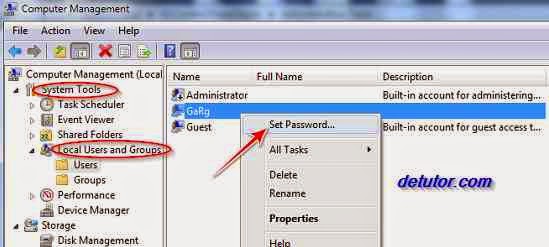
The password has been changed. To confirm this, shutdown your PC and restart it. Enter the new password.
Also Read: How to Enable Delete Confirmation Dialog Box in Windows 8
How to Shutdown Windows 8 by Sliding Down
How to Remove Blank Screen in Windows 8.1
How to Change Windows Password From Command Prompt
You will need to access the command prompt as an administrator to do this:On windows 7
- Click on Start button
- Go to All Programs
- Click on Accessories
- Right click on Command Prompt
- Select Run as Administrator.
On windows 8 and 8.1
- Press and hold the following keys at the same time Windows Key + X + A.
- Click yes on the dialog box that comes up to allow access.
- Next, type in net user Account-Name Password replace account-name with the name of your account (the name displayed when you login) and Password with your new password.
- Press Enter .
Change Windows Password In Computer Management
- Click on the Start button
- Select Computer management
- Select System tools.
- From the drop down menu, select Local Users and Groups.
- Click on Users .
- A list of user accounts on the system is displayed, right click on the account which youll like to change the password.
- On the warning message that pops up, click on Proceed.
- Enter your new password and confirm it.
- Then click on ok.
Go to link download
Thursday, August 25, 2016
How to Change “Post A Comment” Text in Blogger With Image Text
How to Change “Post A Comment” Text in Blogger With Image Text
A post on how to replace Post A Comment text with an Image/Text in Blogger. To get more comments on your blog, you can replace the default blogger post a message text to your customized image or a text that encourages your blog readers to drop comments. Comments from your readers can be more interesting, informative than the post itself and shows how popular your blog really is. With more comments on your blog, you get to know what else your readers want to know and probably what your future post should be. Follow the steps below to replace/change the "Post A Comment" text in blogger into a personalized text or cool image.
Also Read: How to Make Blogger Widgets/Gadgets Sticky(Float)
How to Add Custom Robots Header Tags In Blogger
How To Show AdSense Below Post Title
In the codes above, For Images
<img src="Image-URL" />
Some Images have been provided below. Instead of going through the processes of creating your own image, you can use any of these by copying the codes for your desired image, then use them to replace <data:postCommentMsg/>
Style 1

Style 2
-compressed.jpg)
Style 3

Style 4

Style 5

Style 6

Style 7

Style 8

For text
How to Add HTML Parse Tool in Blogger
Going through the steps above thoroughly, youll be able to change the “Post A Comment” With An Image/Text in Blogger successfully.
Also Read: How to Make Blogger Widgets/Gadgets Sticky(Float)
How to Add Custom Robots Header Tags In Blogger
How To Show AdSense Below Post Title
Steps To Replace "Post A Comment" in Blogger Blog
- Goto your Blogger Template
- Click on Edit HTML
- Search for this line of code
<a expr:id=data:widget.instanceId + "_comment-editor-toggle-link" href=javascript:void(0)><data:postCommentMsg/></a>
- Also search for:
<h4 id=comment-post-message><data:postCommentMsg/></h4>
In the codes above, For Images
- Replace <data:postCommentMsg/> with
<img src="Image-URL" />
- From the image tag above, replace Image-URL with your desired Image URL.
- To centralize the image, add the the center tag. It should look like this:
Some Images have been provided below. Instead of going through the processes of creating your own image, you can use any of these by copying the codes for your desired image, then use them to replace <data:postCommentMsg/>
Style 1
<img src="https://blogger.googleusercontent.com/img/b/R29vZ2xl/AVvXsEjMh_dxnvtg6A_BlV2pxgYnA2XmeBm7-bGMunnWosVrFoiyFzt-HsTz4uHJvC1e73-9-gk1JxRPC6XV17Vs0cFjnp5jkOyQxPqN1UUVs7CZx8RT1AzlMlLnSTvodtQQykLQSiJLLJDYQj_q/s1600/animated+comment+arrow.gif" />
Style 2
<img src="https://blogger.googleusercontent.com/img/b/R29vZ2xl/AVvXsEh9dLMAxAZRR-I6M2fh0p5rfe99wcEOOsatXGErgScyG5GQ-zJu_WPuFk6m4HZ9Rti5gCFzD7SSS9FpSDDBGaL6zFFd7053Vjl7tOCNDPqf-CzJ4jIC-deHH2JNJ3PnRFN-jqz53dULM28/s1600/PostAComment+(4).png"/>
Style 3
<img src="http://i.imgur.com/hR5AoQv.jpg"/>
Style 4
<img src="https://blogger.googleusercontent.com/img/b/R29vZ2xl/AVvXsEg9cVYcPyFzqucQ6anOWUrcId_F0NCie3EwrOKmq6pS3mpFcweeDM9B9QqGBmgEtgihMz7_SdFt_dh6VNo7xS4k7u8cvvK6aWYz3rm3RKOU5ESQntXloDEOH51J9BYkisSxoIv186m1Xeo/h63/22.png" />
Style 5
<img src="https://blogger.googleusercontent.com/img/b/R29vZ2xl/AVvXsEi4LKd7s2I7Rh8qtEbEr0mmq4yAsqqmEC7y7LJbsjtlGR8Wr_SxBpkSQ45dZrG2eXDG141twPuqRtdtJxEYUnBIhuoD4lC2KGdA15KnD7bh5s18JWJNWIzj7E7dWzZuj7I3mGCOCienU6A/s1600/leave+a+comment.png" />
Style 6
<img src="https://blogger.googleusercontent.com/img/b/R29vZ2xl/AVvXsEiJOmBlwj_J1UdD5KeWuhKbkMiOl3STWjGYR8V19Ad3swmHe-jn0DlKUbyku_B322oS9xmRb-QKBD5VMYGNBi5lz0bEK1GD6heJtuIVeDXMVQGH3dT_dfzaZIAvv9O58b81CFfpPJ46FsY/s1600/Post+a+comment+blogger.png" />
Style 7
<img src="https://blogger.googleusercontent.com/img/b/R29vZ2xl/AVvXsEh52fue9gC0ThPgrOmZ5YDyVzGD6IBEABlVm8mEGx5FyC9qNHLMKen4nI506m1en4p_gNmNPQpmEr5AoeBm0GlUBmP3CybqlRgjLlONMa_iI94JroOzFn_P79eMC9rz2ftJZgncuEO_SYM/h86/33.png" />
Style 8
<img src="http://i.imgur.com/Wu2M9sv.jpg/>
For text
- Replace <data:postCommentMsg/> in the code with your text.
- Save your template.
How to Add HTML Parse Tool in Blogger
Going through the steps above thoroughly, youll be able to change the “Post A Comment” With An Image/Text in Blogger successfully.
Go to link download
Subscribe to:
Posts (Atom)